Concerts and Recordings
This section covers managing concert data, performance history, playgrams, and audio recordings in AllanaCrusis. These features help track your organization’s performance history and create valuable archives.
Table of contents
- Understanding Performance Tracking
- Concert Management
- Playgrams
- Performance History
- Recordings Management
- Integration with Compositions
- Reporting and Analysis
Understanding performance tracking
what is Performance Tracking?
Performance tracking in AllanaCrusis includes:
- Concerts: Individual performance events with dates, venues, and programs
- Playgrams: Detailed programs showing what was performed when
- Performance history: Complete record of when compositions have been performed
- Recordings: Audio/video files linked to performances or compositions
benefits of Performance Tracking
- Historical record: Maintain complete performance archive
- Programming assistance: Avoid repeating recent performances
- Anniversary planning: Track when pieces were last performed
- Educational value: Show students performance tradition
- Grant reporting: Document organization activity
- Marketing materials: Showcase performance history
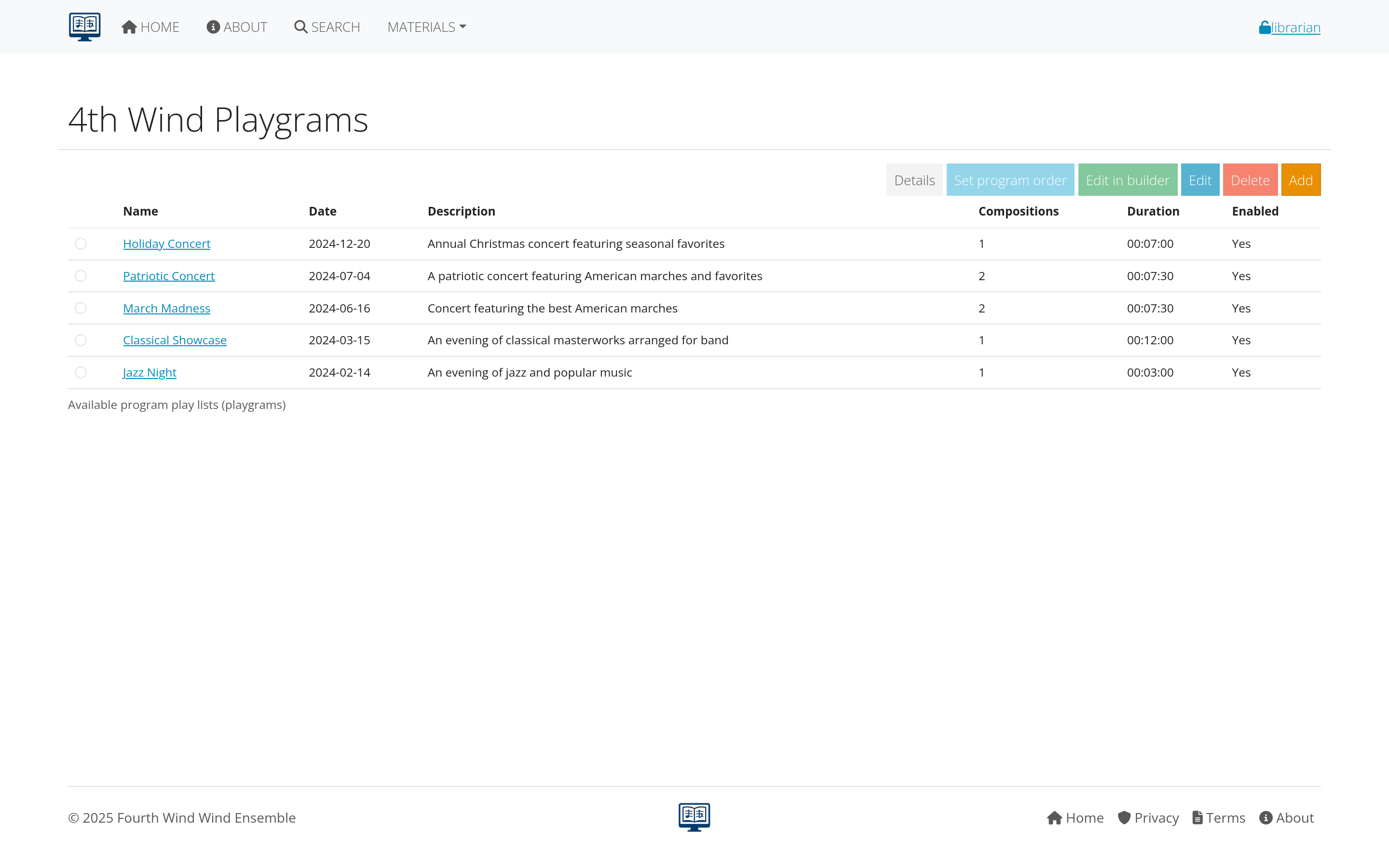 Figure 1: Overview of performance tracking components in AllanaCrusis
Concert management
creating a New Concert
- Navigate to concerts section (may be under Materials or Reports)
- Click “Add New Concert”
- Fill in concert details
Basic Concert Information
Required Fields:
- Concert title: “Spring Concert 2025”, “Holiday Performance”
- Date: Performance date and time
- Venue: Location of performance
- Ensemble: Performing group
Optional Fields:
- Conductor: Person leading the performance
- Description: Special notes about the concert
- Season/Series: If part of a regular series
- Audience type: Public, private, educational, etc.
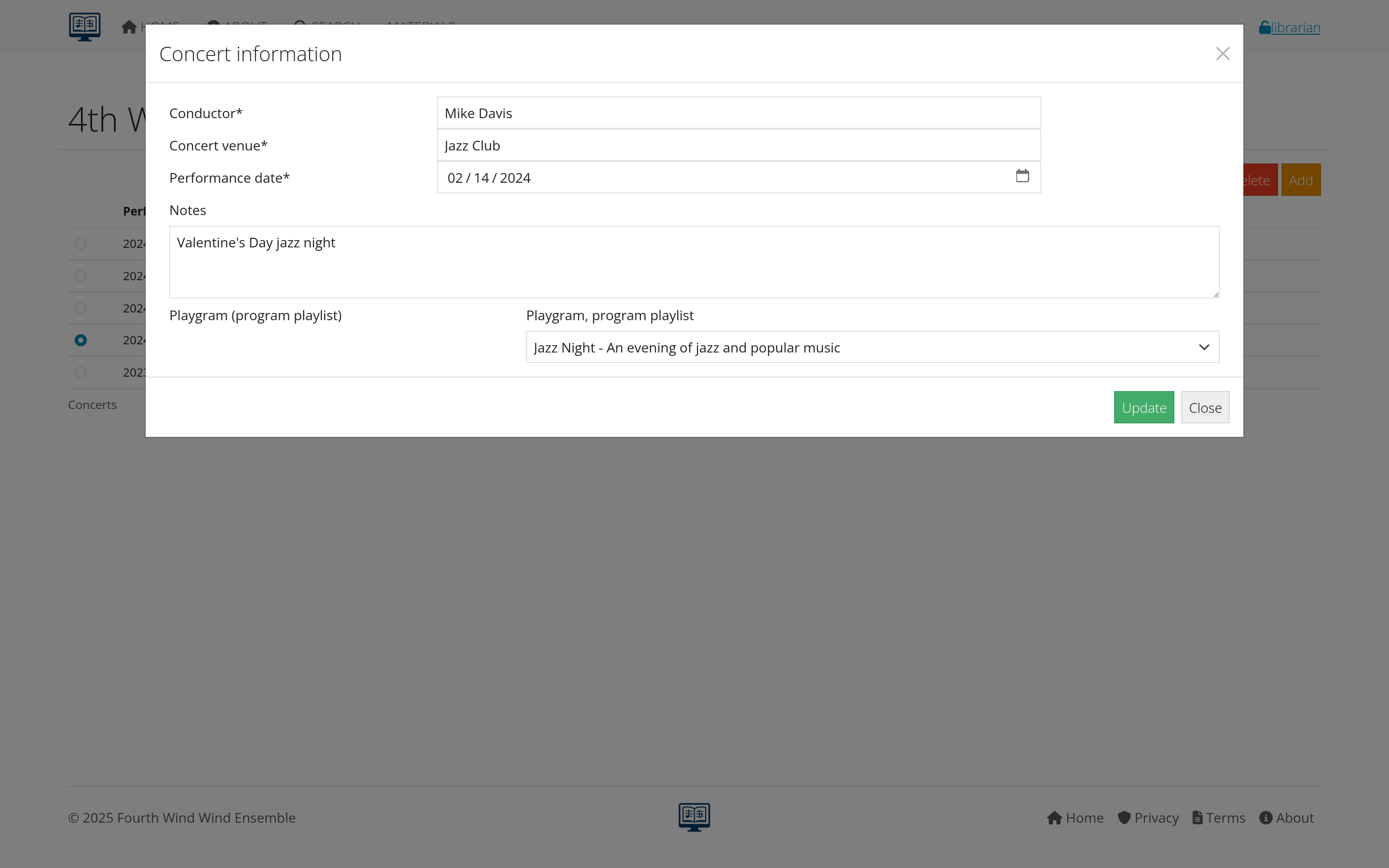 Figure 2: Form for creating a new concert event
Concert Details
Venue Information:
- Name: Complete venue name
- Address: Full location details
- Type: Concert hall, outdoor venue, school, etc.
- Capacity: Number of seats (if relevant)
Performance Context:
- Concert type: Regular concert, festival, competition, etc.
- Ticket information: Free, ticketed, fundraiser
- Special circumstances: Memorial concert, celebration, etc.
editing Concert Information
- Find the concert in the concerts list
- Click “Edit” button
- Update information as needed
- Save changes
Common edits include:
- Date/time changes: Due to scheduling conflicts
- Venue updates: If location changes
- Program modifications: As repertoire is finalized
- Additional details: Notes added after the event
Figure 3: Editing existing concert information
Playgrams
what are Playgrams?
Playgrams are detailed concert programs that show:
- Order of performance: Sequence of pieces in the concert
- Specific compositions: Which works were performed
- Program structure: Movements, intermissions, encores
- Additional information: Soloists, special notes
creating Playgrams
Method 1: Build Program During Concert Creation
- While creating/editing a concert
- Add compositions to the program
- Set performance order
- Add program notes
Method 2: Playgram Builder Tool
- Access Playgram Builder (separate tool)
- Select concert to build program for
- Search and add compositions
- Arrange in performance order
- Add intermissions and special elements
Figure 4: Playgram builder showing program construction
program Elements
Standard Elements:
- Musical compositions: Main repertoire
- Intermissions: Breaks in the program
- Encores: Additional pieces performed
- Special features: Solos, guest performers, narration
Additional Information:
- Program notes: Background on compositions
- Personnel: Soloists, guest conductors
- Acknowledgments: Sponsors, special thanks
- Technical notes: Special staging, equipment
playgram Management
Ordering and Organization:
- Drag and drop: Rearrange program order
- Numbering: Automatic or manual sequence numbers
- Grouping: Sets, movements, multi-part works
- Timing: Estimated or actual performance durations
Program Validation:
- Composition verification: Ensure pieces exist in library
- Timing calculations: Total program length
- Balance checking: Variety in programming
- Historical awareness: Recent performance checking
 Figure 5: Tools for organizing and validating concert programs
Performance history
tracking Performance History
Every time a composition is included in a playgram, it creates a performance record showing:
- When: Date of performance
- Where: Venue and concert context
- Who: Ensemble and conductor
- Program context: What else was performed
viewing Performance History
For Individual Compositions:
- Go to composition details
- Look for “Performance History” section
- See chronological list of performances
For Ensembles:
- Access ensemble performance history
- Filter by date ranges
- Sort by various criteria
 Figure 6: Performance history showing when and where compositions were performed
using Performance History
Programming Decisions:
- Avoid repetition: See when pieces were last performed
- Anniversary programming: Commemorate significant performances
- Audience consideration: Balance familiar and new repertoire
- Educational planning: Show students performance tradition
Historical Research:
- Repertoire analysis: What types of music are performed most
- Conductor preferences: Different conductors’ programming patterns
- Seasonal patterns: Holiday music, graduation pieces, etc.
- Venue considerations: What works well in different spaces
Recordings management
types of Recordings
AllanaCrusis can manage various recording types:
- Live concert recordings: Full or partial concert audio/video
- Studio recordings: Professional recording sessions
- Reference recordings: Examples for rehearsal or study
- Archival recordings: Historical performances
adding Recordings
Upload Process
- Access recordings section
- Click “Add Recording”
- Upload audio/video file or link to external source
- Add recording metadata
Recording Information
Basic Details:
- Title: Recording description
- Date: When recording was made
- Performers: Ensemble, conductor, soloists
- Recording quality: Professional, amateur, rehearsal, etc.
Technical Information:
- File format: MP3, WAV, MP4, etc.
- Quality settings: Bitrate, resolution
- Duration: Length of recording
- File size: For storage planning
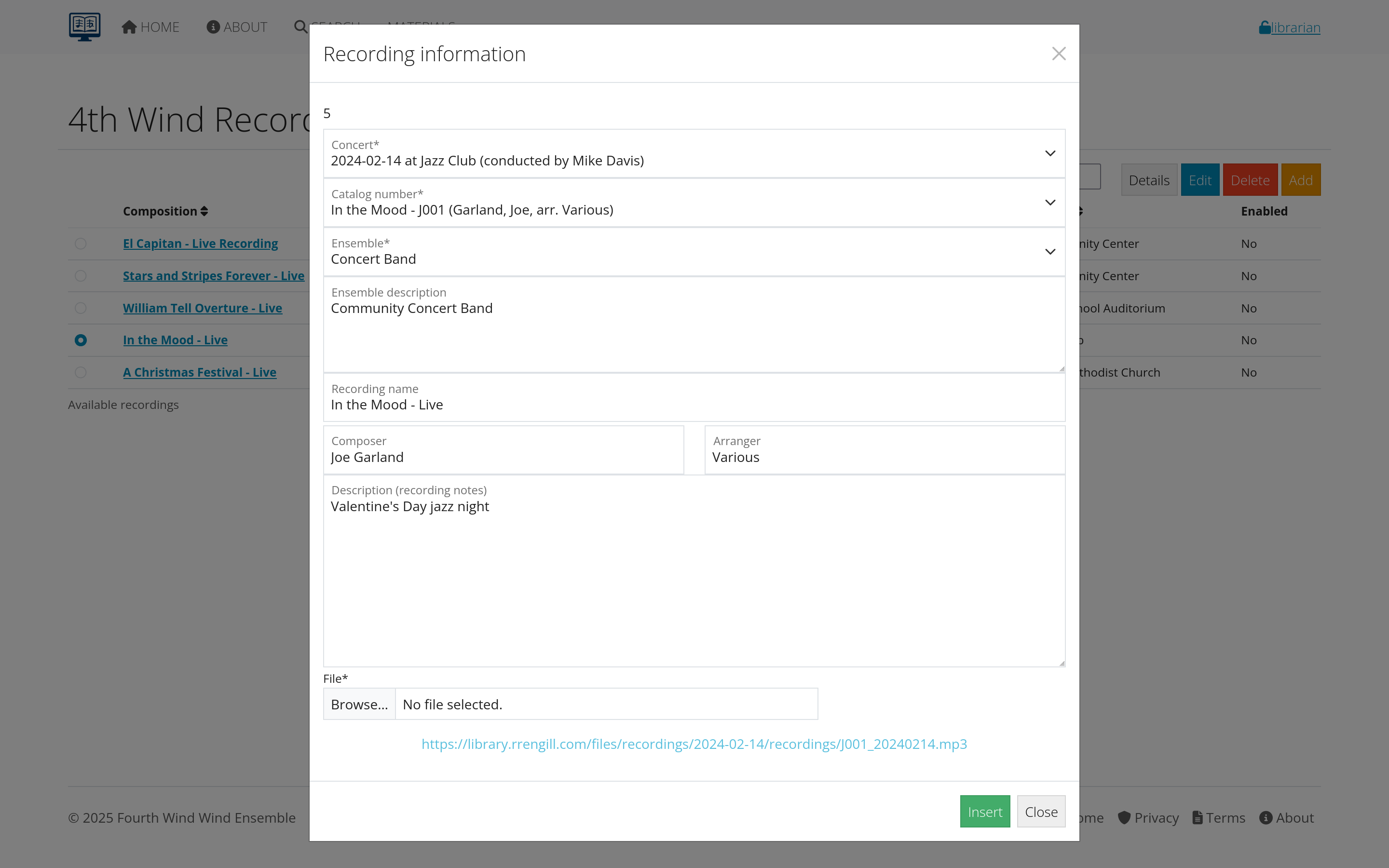 Figure 7: Form for adding new recordings with metadata
Linking to Performances
Concert Recordings:
- Link to specific concert: Connect recording to playgram
- Partial recordings: Note which pieces are included
- Multiple recordings: Different microphone positions, etc.
Composition Recordings:
- Reference recordings: Examples of how piece should sound
- Multiple interpretations: Different performances of same work
- Educational use: Recordings for study and analysis
recording Organization
Categories and Tags:
- Performance type: Concert, rehearsal, masterclass
- Quality level: Professional, educational, archival
- Usage permissions: Public, educational use only, restricted
- Format specifications: Audio vs. video, resolution, etc.
Access Control:
- Public recordings: Available to all users
- Member only: Requires login to access
- Educational use: Restricted to specific purposes
- Archive only: For preservation, not general access
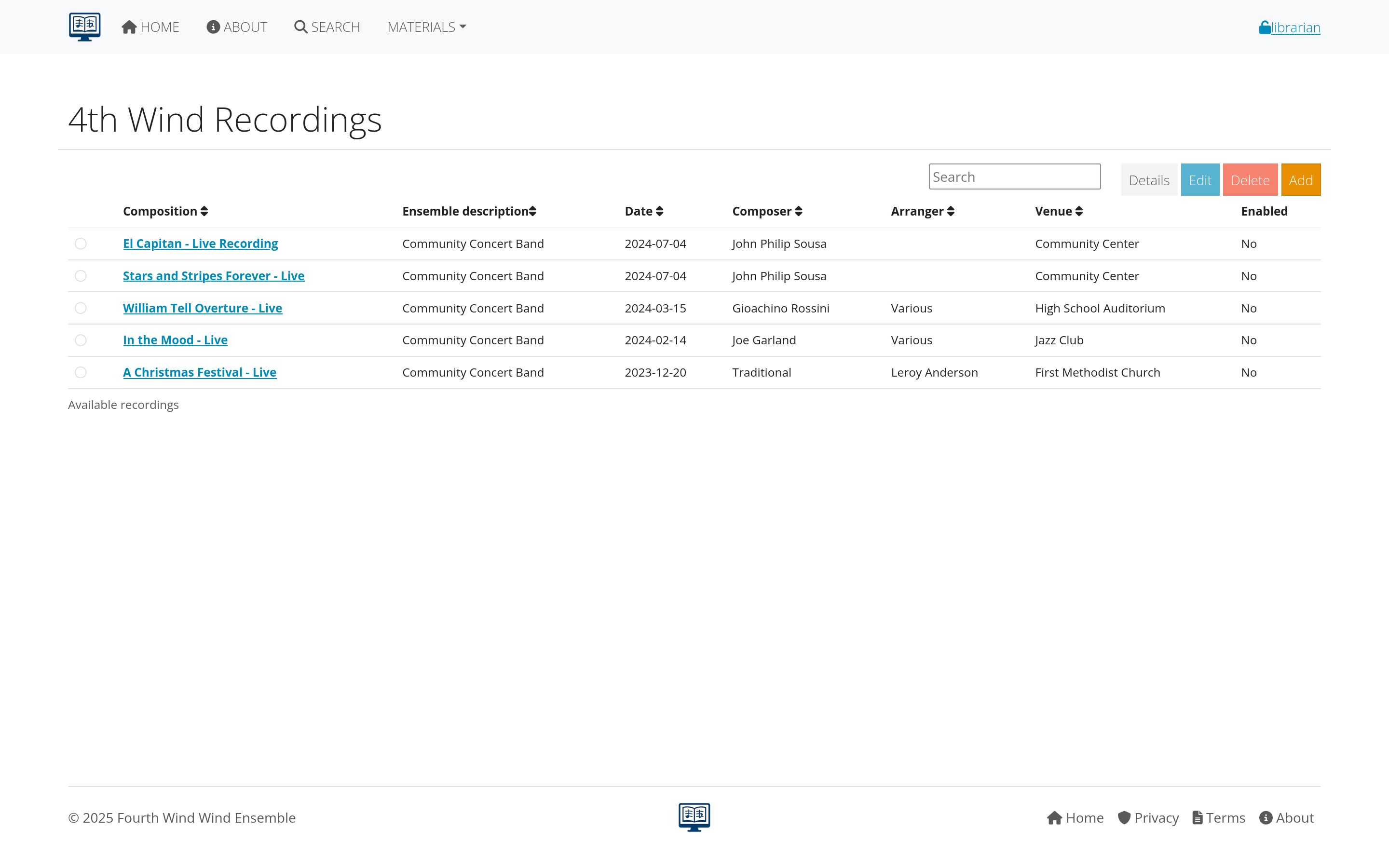 Figure 8: Interface for organizing and categorizing recordings
Integration with compositions
linking Performances to Compositions
When compositions are added to playgrams:
- Automatic linking: Performance history updates automatically
- Bidirectional connections: View from composition or concert perspective
- Statistical tracking: Usage counts and frequency analysis
enhanced Composition Information
Performance tracking adds valuable context to compositions:
- Performance frequency: How often piece is performed
- Last performance: When it was most recently played
- Historical significance: Important or memorable performances
- Programming context: What pieces it’s commonly performed with
programming Analysis
Repertoire Patterns:
- Popular pieces: Most frequently performed works
- Forgotten repertoire: Pieces not performed recently
- Seasonal trends: Holiday music, graduation pieces
- Difficulty analysis: Grade level vs. performance frequency
Conductor Analysis:
- Programming preferences: Different conductors’ repertoire choices
- Repertoire development: How programming evolves over time
- Guest conductor impact: Special repertoire for visiting conductors
 Figure 9: Analysis tools showing programming patterns and trends
Reporting and analysis
performance Reports
Standard Reports:
- Concert programs: Formatted programs for printing
- Performance history: Chronological lists by composition or date
- Repertoire analysis: Statistical breakdown of programming
- Anniversary reports: Significant dates and milestones
Custom Reports:
- Date range analysis: Performance activity in specific periods
- Venue reports: What’s been performed where
- Conductor reports: Programming by different conductors
- Genre analysis: Balance of different musical styles
data Export Options
Format Options:
- PDF programs: Print-ready concert programs
- CSV data: Raw data for external analysis
- Calendar exports: Performance dates for scheduling software
- Web formats: Online program displays
Integration Capabilities:
- Website integration: Automatic program publishing
- Marketing materials: Performance history for promotion
- Grant reporting: Documentation of organizational activity
- Educational resources: Historical context for students
 Figure 10: Interface for generating various types of performance reports
analytics and Insights
Trend Analysis:
- Programming trends: How repertoire choices change over time
- Audience preferences: Popular vs. less popular works
- Educational progression: How difficulty level changes seasonally
- Historical cycles: When pieces tend to be revived
Planning Tools:
- Gap analysis: Repertoire not performed recently
- Balance checking: Variety in programming choices
- Anniversary tracking: Significant dates and commemorations
- Venue suitability: What works well in different spaces
Best practices
data Quality
Consistent Entry:
- Standardize concert naming: Use consistent format for concert titles
- Accurate dates: Double-check performance dates and times
- Complete information: Fill in all available details
- Regular updates: Keep information current as plans change
Verification Process:
- Cross-check programs: Verify against printed programs
- Confirm recordings: Ensure recordings match performance data
- Update after events: Add actual information after concerts
- Historical verification: Research accuracy of older entries
organization Strategy
Systematic Approach:
- Regular data entry: Update system consistently
- Batch processing: Handle multiple concerts efficiently
- Backup planning: Protect performance history data
- Access management: Control who can edit performance data
Long-term Planning:
- Historical preservation: Maintain complete archives
- Migration planning: Ensure data survives system changes
- Integration goals: Connect with other organizational systems
- Educational value: Make archives useful for learning
 Figure 11: Checklist for maintaining quality performance data
Troubleshooting
common Issues
Missing Performance Data:
- Incomplete playgrams: Some compositions not linked to performances
- Date errors: Incorrect or missing performance dates
- Venue confusion: Performance location not clearly identified
Recording Problems:
- File access issues: Recordings not playing or downloading
- Quality concerns: Poor audio or video quality
- Storage limitations: Files too large for system capacity
- Permission problems: Access restrictions not working properly
Integration Difficulties:
- Composition linking: Performances not connecting to correct compositions
- Duplicate entries: Same performance entered multiple times
- Data inconsistency: Information conflicts between different records
solutions and Workarounds
Data Correction:
- Systematic review: Regular audits of performance data
- Correction procedures: Standard process for fixing errors
- Verification sources: Use programs, recordings, and other documents
- Change documentation: Track what corrections were made and why
System Optimization:
- File management: Organize recordings efficiently
- Performance tuning: Optimize database for performance queries
- User training: Ensure consistent data entry practices
- Backup procedures: Protect against data loss
Next steps
With performance tracking properly set up:
- Learn Distribution - Share materials with performers and audiences
- Explore Admin Functions - Advanced management and reporting tools
- Review Troubleshooting - Handle common issues and problems
Continue to the next section: Part Distribution to learn about sharing musical materials with users.