Managing individual parts
This section covers managing individual instrument parts after instrumentation has been set up, including editing part details, file uploads, physical inventory, and organizing materials.
Table of contents
- Describing individual parts
- Managing parts
- Managing files
- Physical inventory
- Part collections
- Quality control
- Workflow integration
- Troubleshooting
- Advanced features
Describing individual parts
What are individual parts?
Individual parts are specific instrument components that have been created through instrumentation setup:
- Specific instruments: Flute 1, Trumpet 2, Percussion, etc.
- Physical tracking: Count of original printed parts
- Digital files: PDF or other electronic formats
- Metadata: Page counts, paper sizes, descriptions
Prerequisites
Before managing individual parts, you must:
- Complete instrumentation setup: Parts must be created first
- Have librarian access: Required for editing part details
- Know your physical inventory: Understand what parts actually exist
For instrumentation setup, see: Instrumentation Management
Managing parts
accessing Parts List
- Go to MATERIALS > Parts
- Find your composition (sorted by catalog number)
- Click composition title to see parts list
- Each part has an “Edit” button
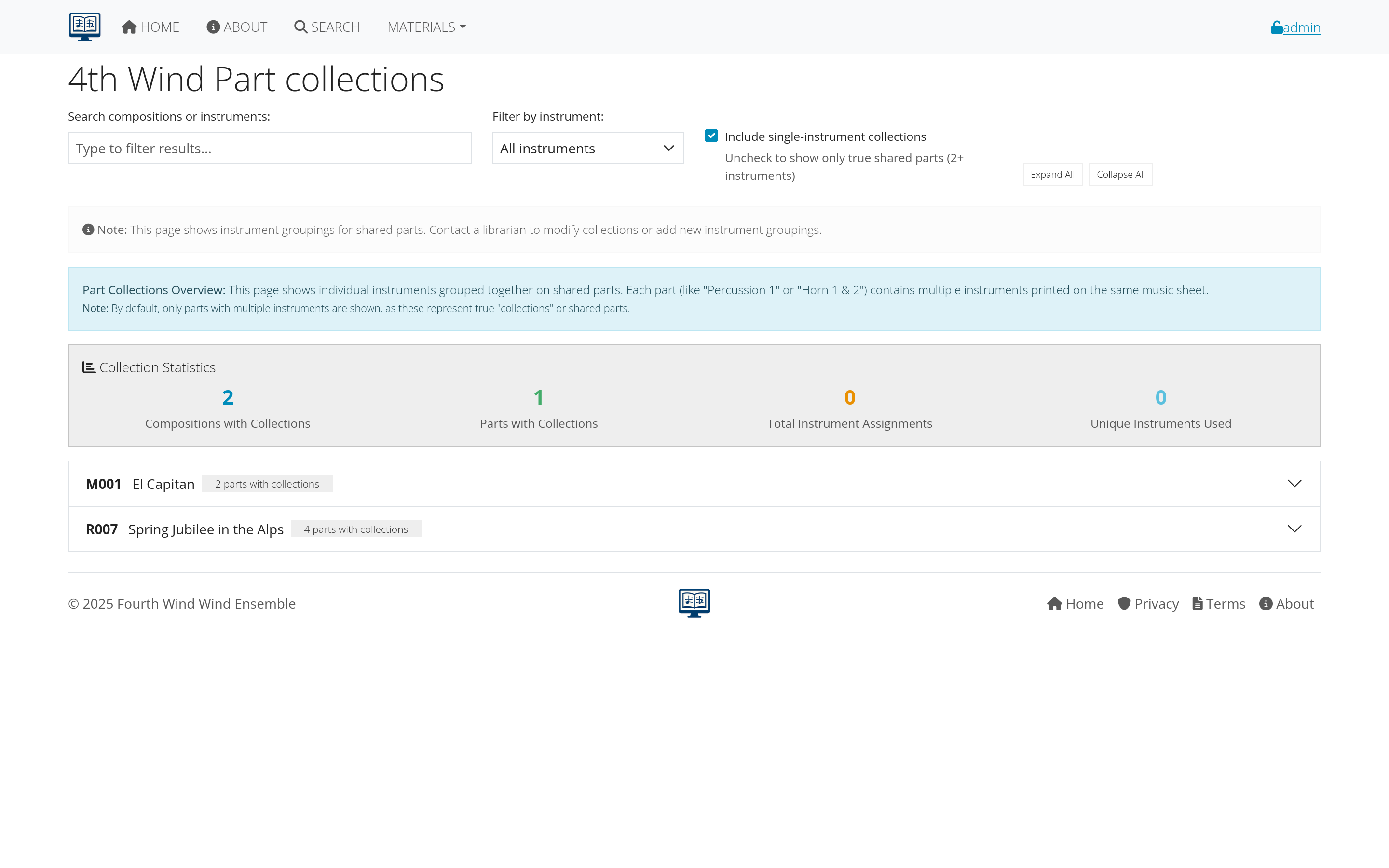 Figure 1: List of parts for a specific composition
editing Individual Parts
Click the blue “Edit” button for any part to access detailed management:
Basic Part Information
- Part name: Usually set automatically from instrument
- Paper size: Specific to this part (may differ from composition default)
- Page count: Actual pages for this specific part
- Part type: Individual part, condensed score, etc.
Physical Inventory Tracking
Originals Count
- Enter “1” for each part you actually have in the folder
- Enter “0” for missing parts that should be there
- Default is usually “1” but verify against physical materials
Part Condition
- Description field: Note condition of physical parts
- Common notes: “Pencil markings”, “Torn pages”, “Deckle-edged”
- Missing pages: Note specific page issues
- Quality concerns: Anything affecting usability
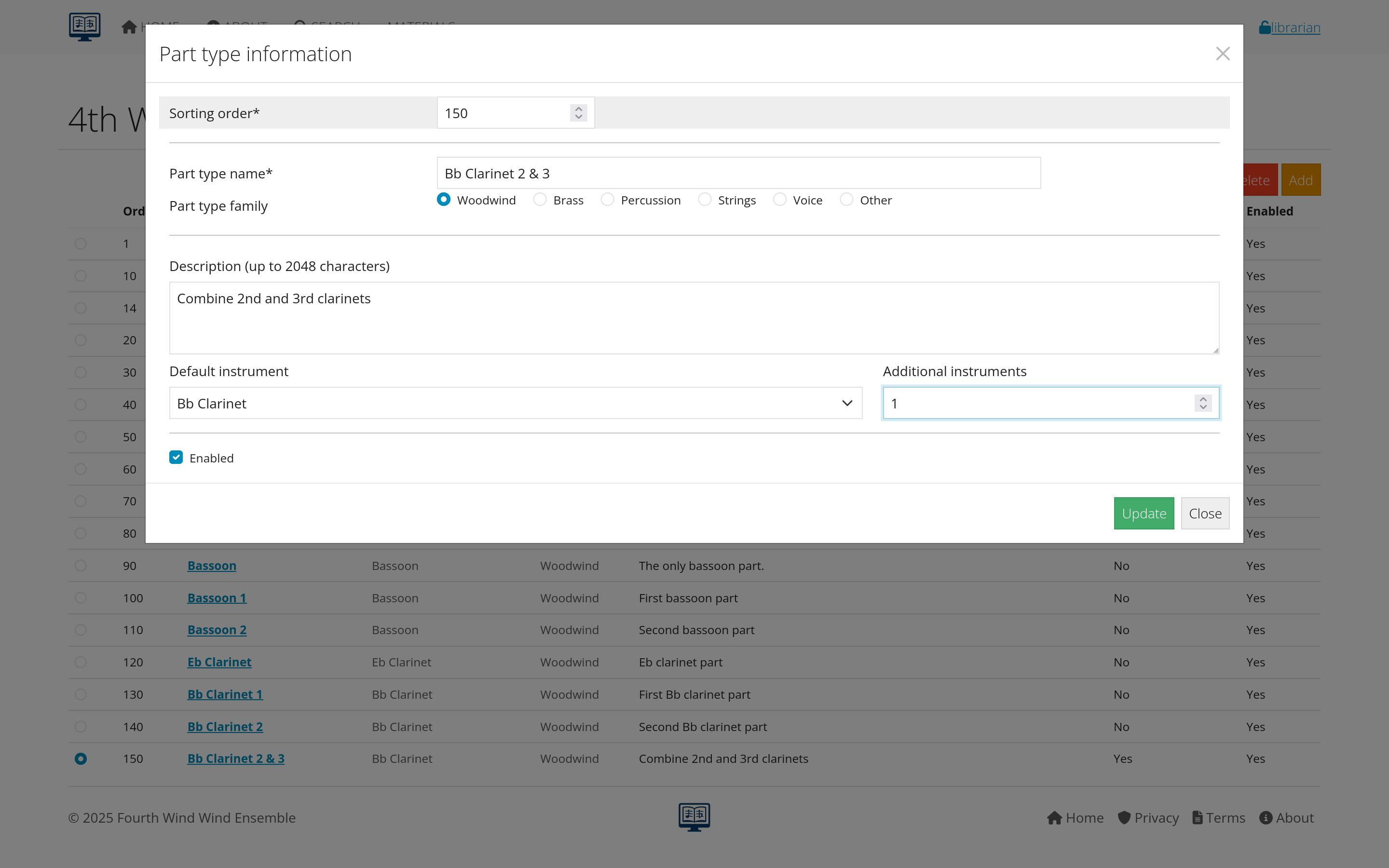 Figure 2: Editing form for an individual part
Instrument Assignment
Primary Instrument
- Default assignment: Usually correct based on part name
- Verify accuracy: Especially for percussion and special parts
- Marked with asterisk: Shows the primary assignment
Multiple Instruments on One Part Common for percussion parts labeled:
- “Percussion 1”, “Mallet Percussion”, “Auxiliary Percussion”
Process for multi-instrument parts:
- Add all instruments that appear on the part
- Hold Ctrl/Cmd to select multiple instruments
- Be specific: Include all instruments actually used
- Optional description: List instruments in description field
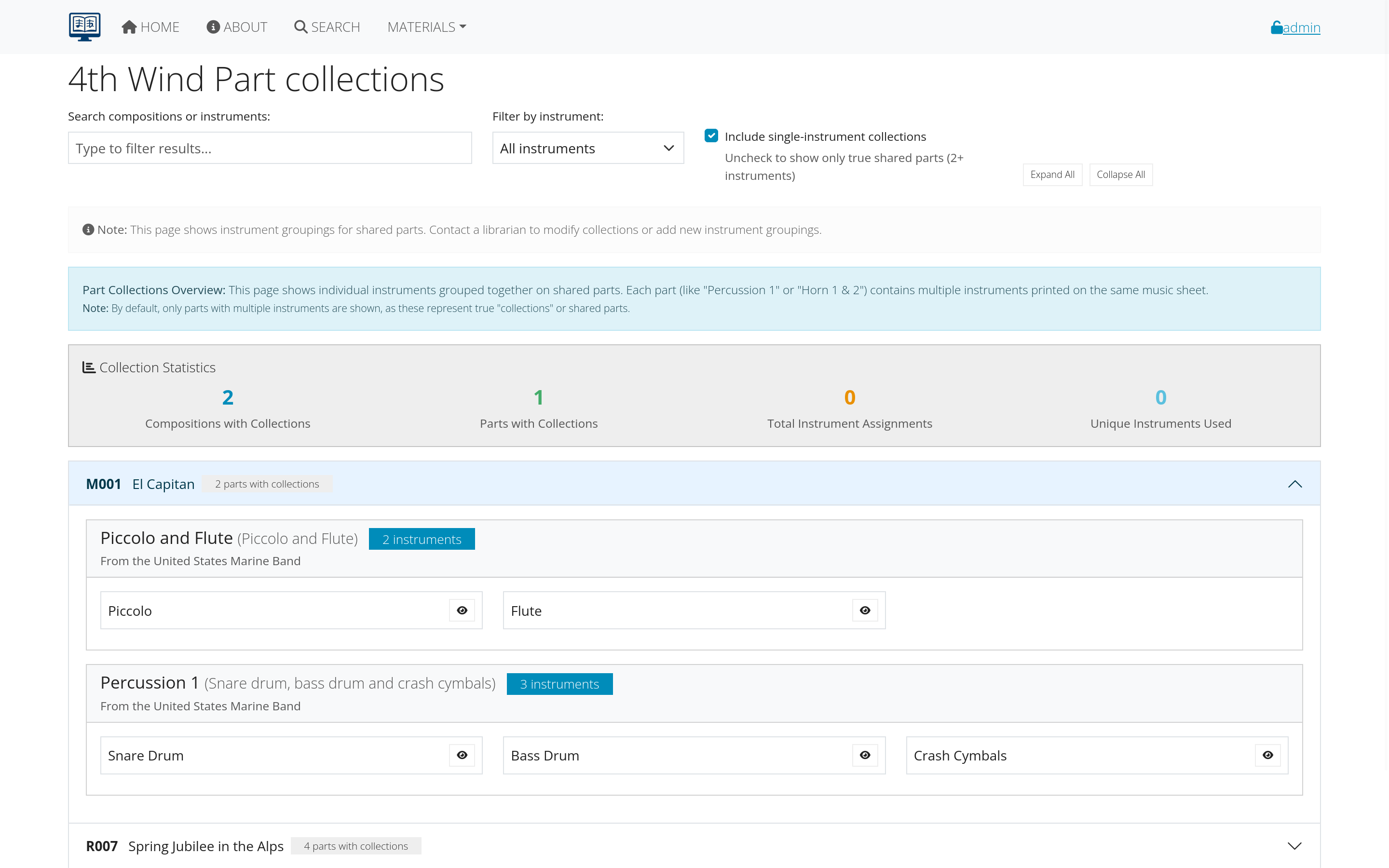 Figure 3: Assigning multiple instruments to a single part
Special Part Handling
Doubled Parts (e.g., Flute 1 & 2)
- Add same instrument twice to the instruments list
- Shows two instances of the same instrument
- Reflects actual part content
Percussion Parts
- Most complex assignments: Often include many instruments
- Check throughout the part: Instruments may appear in different movements
- Common instruments: Snare drum, bass drum, crash cymbals, triangle, etc.
- Ask for help: Consult percussionists or experienced librarians
Condensed Parts
- Multiple instruments on one part: Common in older or simplified arrangements
- Assign all relevant instruments
- Note in description: “Condensed part for Clarinet 1 & 2”
Managing files
digital File Types
AllanaCrusis typically handles:
- PDF files: Most common for sheet music
- Image files: Scanned parts (JPEG, PNG)
- Audio files: Reference recordings (MP3, WAV)
- Other formats: As supported by your system
uploading Files
- Access part editing form
- Look for file upload section
- Choose file from computer
- Add file description (optional but helpful)
- Set access permissions (who can download)
- Upload file
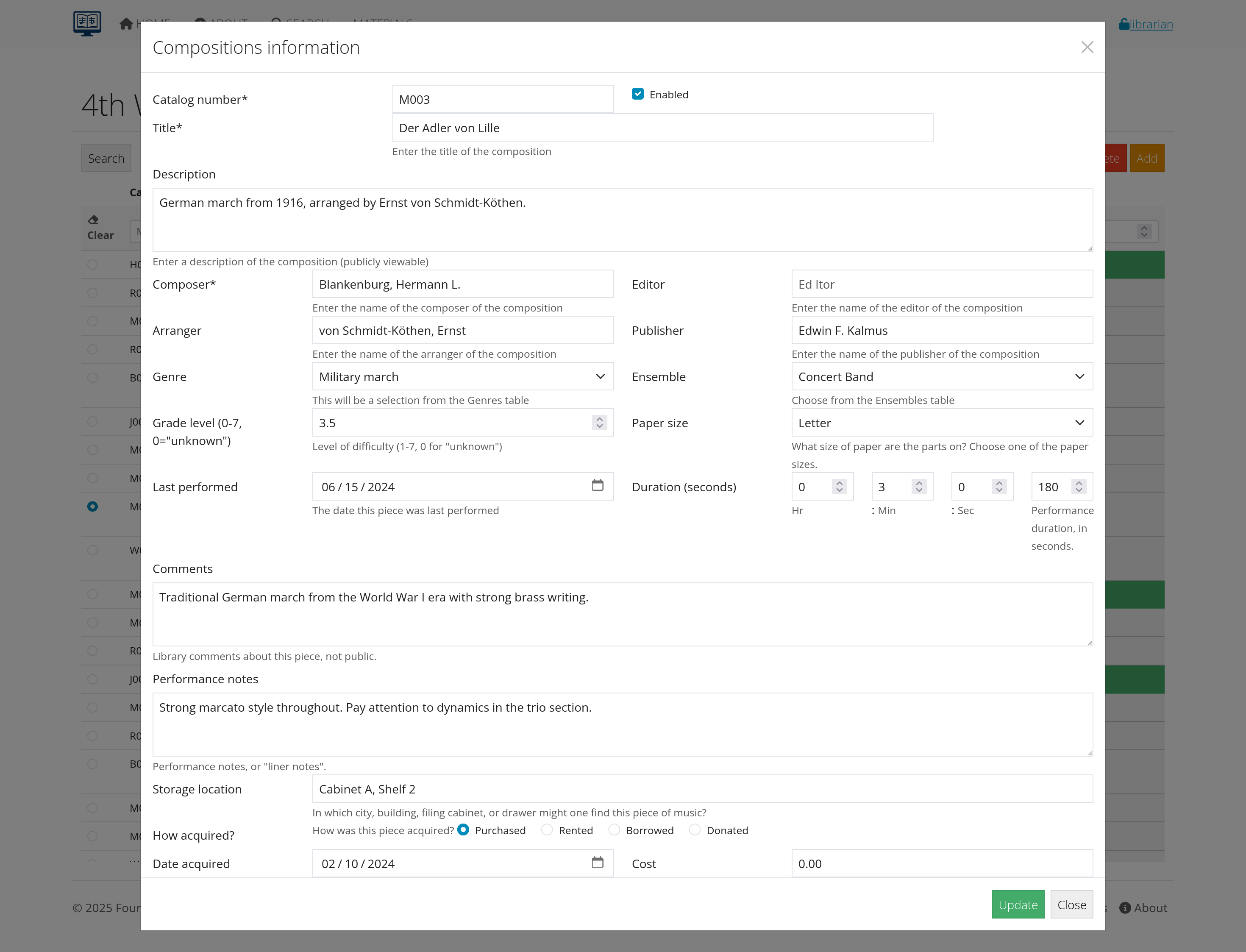 Figure 4: Uploading digital files for parts
file Organization Best Practices
Naming Conventions
- Descriptive names: Include composition and instrument
- Consistent format: “Composer-Title-Instrument.pdf”
- Version control: Include edition or version info if relevant
Quality Standards
- Resolution: High enough for clear reading (300 DPI minimum)
- File size: Balance quality with download speed
- Completeness: Ensure all pages are included
- Orientation: Consistent page orientation
access Control
Permission Levels
- Public: Anyone can download
- Members only: Requires login
- Restricted: Specific users or roles only
- Internal only: Staff and librarians only
Distribution Tracking
- Download logs: Track who downloads what files
- Usage statistics: Monitor popular materials
- Access reports: Understand user patterns
Physical inventory
inventory Management
Tracking physical parts is crucial for:
- Performance preparation: Know what parts are available
- Copying needs: Identify missing parts requiring copies
- Storage planning: Organize physical storage efficiently
- Loss prevention: Track materials checked out or missing
inventory Process
- Count actual parts in each composition folder
- Update originals count for each part
- Note condition issues in descriptions
- Flag missing parts for copying or acquisition
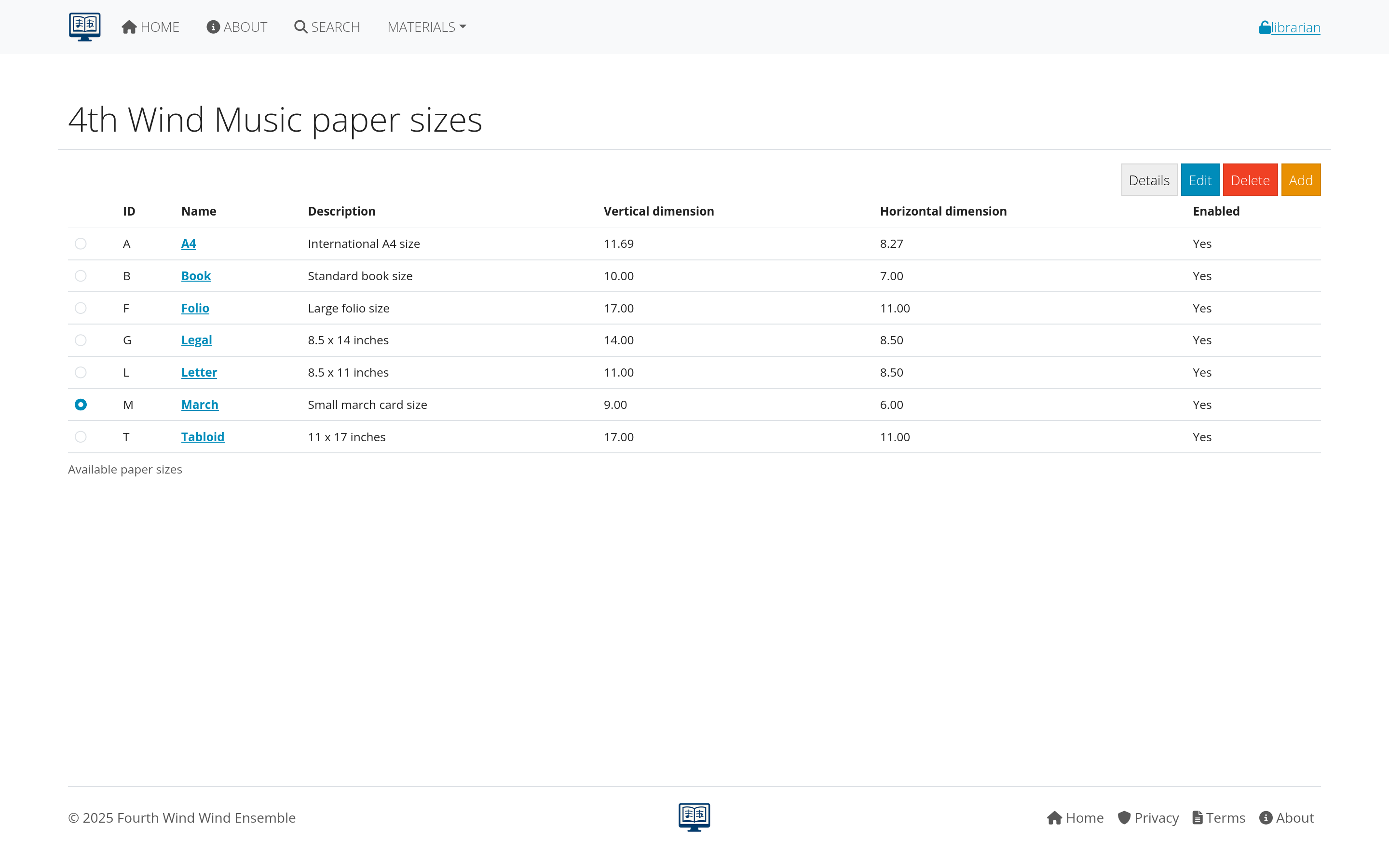 Figure 5: Tracking physical inventory of parts
common Inventory Issues
Missing Parts
- Note in system: Set originals count to “0”
- Prioritize for copying: Popular pieces first
- Check other locations: Parts may be misfiled
- Order replacements: From publisher if available
Damaged Parts
- Document condition: Note in description field
- Assess usability: Can it still be used for performance?
- Plan replacement: Copy or order new parts
- Preserve originals: Even if damaged, keep for reference
Extra Parts
- Verify accuracy: Make sure they belong to this composition
- Update count: Reflect actual quantity
- Check for duplicates: May indicate filing errors
- Note variations: Different editions or arrangements
Part collections
understanding Part Collections
Part collections are pre-organized sets of parts for specific purposes:
- File copies: Working copies for regular use
- Performance sets: Parts organized for specific concerts
- Rental sets: Complete sets prepared for lending
- Student sets: Educational or simplified versions
creating Part Collections
- Identify need: Performance, education, rental, etc.
- Select parts: Choose which instruments to include
- Organize physically: Group parts appropriately
- Update system: Note collection exists
- Maintain separately: Track collection-specific inventory
Figure 6: Managing different types of part collections
collection Benefits
- Faster setup: Pre-organized for common uses
- Preservation: Protects originals from wear
- Efficiency: Reduces time for performance preparation
- Flexibility: Multiple sets for different purposes
Quality control
regular Maintenance Tasks
Accuracy Verification
- Cross-check instrumentation: Verify against score
- Validate part counts: Ensure physical inventory matches system
- Review descriptions: Update condition notes as needed
- Check file links: Ensure digital files are accessible
Data Consistency
- Standardize naming: Use consistent part naming conventions
- Uniform formatting: Paper sizes, page counts, descriptions
- Complete information: Fill in missing data when possible
- Error correction: Fix mistakes found during use
common Quality Issues
Instrumentation Errors
- Missing instruments: Parts exist but not listed in system
- Extra instruments: System shows parts that don’t exist
- Wrong assignments: Instruments assigned to wrong parts
- Incomplete lists: Partial instrumentation setup
Inventory Discrepancies
- Count mismatches: System count doesn’t match physical reality
- Location confusion: Parts filed in wrong places
- Condition changes: Physical condition not updated in system
- Missing updates: Recent changes not reflected in database
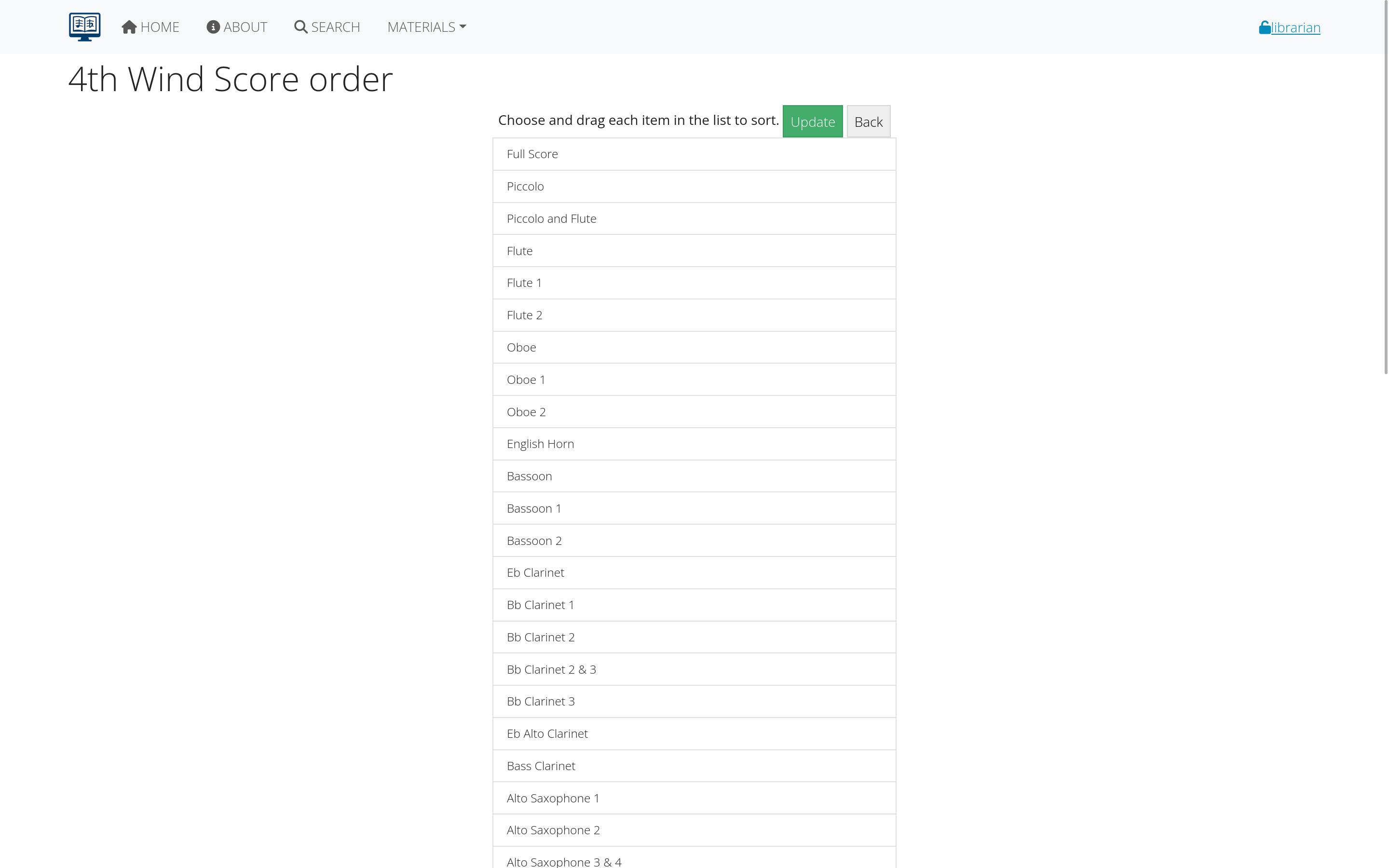 Figure 7: Quality control checklist for parts management
best Practices
Regular Reviews
- Monthly audits: Check high-use compositions
- Annual inventory: Complete physical verification
- Condition assessments: Monitor wear and damage
- System updates: Keep digital records current
Training and Documentation
- Staff training: Ensure consistent data entry practices
- Process documentation: Written procedures for complex tasks
- Error reporting: System for identifying and fixing problems
- Continuous improvement: Update procedures based on experience
Workflow integration
connection to Other Functions
Performance Planning
- Parts availability: Check what’s ready for performance
- Copying needs: Identify missing parts for upcoming concerts
- Set preparation: Organize parts for specific performances
Distribution Management
- Digital access: Link files to distribution system
- Permission management: Control who can access what files
- Usage tracking: Monitor downloads and access patterns
Reporting and Analysis
- Inventory reports: Status of physical and digital materials
- Usage statistics: Most popular parts and compositions
- Maintenance needs: Parts requiring attention or replacement
Troubleshooting
common Problems and Solutions
Parts Not Appearing in Lists
- Check instrumentation setup: May not be added to composition
- Verify part creation: Instrumentation process may not be complete
- Review filters: Search/filter settings may be hiding parts
File Upload Issues
- Check file size: May exceed system limits
- Verify file format: Ensure supported file type
- Permission problems: May not have upload rights for this item
Inventory Confusion
- Physical verification: Count actual parts in folder
- System reconciliation: Update database to match reality
- Documentation: Note discrepancies and their resolution
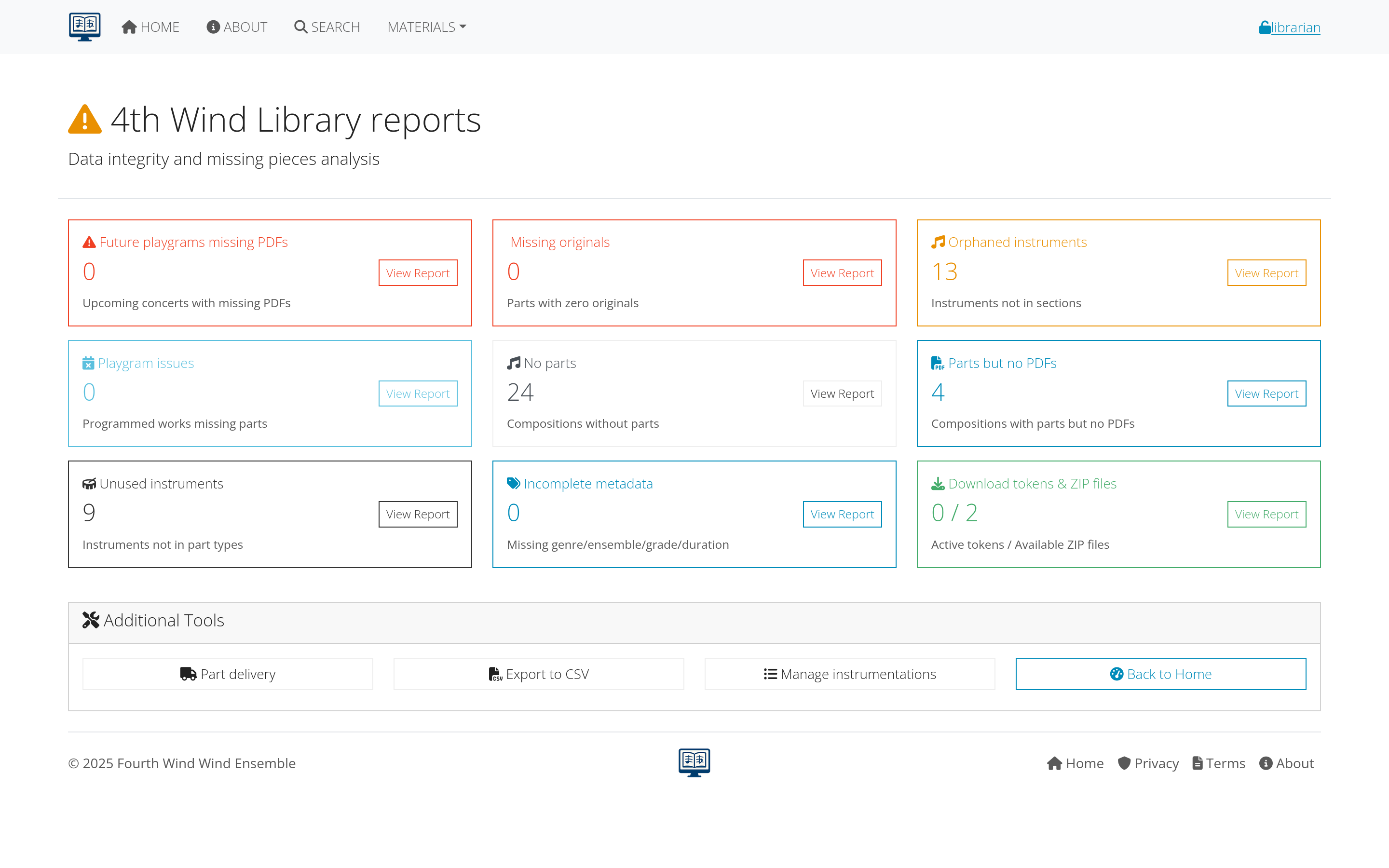 Figure 8: Common parts management issues and solutions
Advanced features
bulk Operations
- Mass updates: Change multiple parts at once
- Import functions: Add parts data from external sources
- Export capabilities: Generate reports and data extracts
integration Tools
- Scanner integration: Direct scanning to part records
- File management: Automated file organization and naming
- Workflow automation: Streamlined processes for common tasks
reporting Tools
- Inventory reports: Complete status of all parts
- Missing parts lists: Prioritize copying and acquisition
- Usage analytics: Understand access patterns and needs
Next steps
With individual parts properly managed:
- Set up Instrumentation - Learn how to set up instrumentation first
- Learn Concert Management - Track performances and recordings
- Explore Distribution - Share parts with users
- Review Admin Functions - Advanced management tools
| *Previous section: Instrumentation Management | Next section: Concerts and Recordings* |