Troubleshooting Guide
This comprehensive troubleshooting guide covers common issues users and administrators encounter with AllanaCrusis, along with step-by-step solutions and preventive measures.
Table of contents
- Getting Help
- Login and Access Issues
- Search and Navigation Problems
- File and Download Issues
- Data Entry and Editing Problems
- Performance and Display Issues
- Administrator Issues
- Browser and Compatibility Problems
Getting help
before You Start Troubleshooting
- Note the specific error message (if any)
- Remember what you were trying to do when the problem occurred
- Check if the problem happens consistently or just occasionally
- Try the same action in a different browser or on a different device
- Check if other users are experiencing the same issue
support Resources
Self-Help:
- This troubleshooting guide: Start here for common problems
- User guide sections: Detailed instructions for specific features
- FAQ section: Quick answers to frequent questions
- Video tutorials: Visual guides for complex procedures
Direct Support:
- System administrator: For technical and access issues
- Librarian: For content and process questions
- Help desk: If your organization has dedicated support
- User community: Other users who may have experienced similar issues
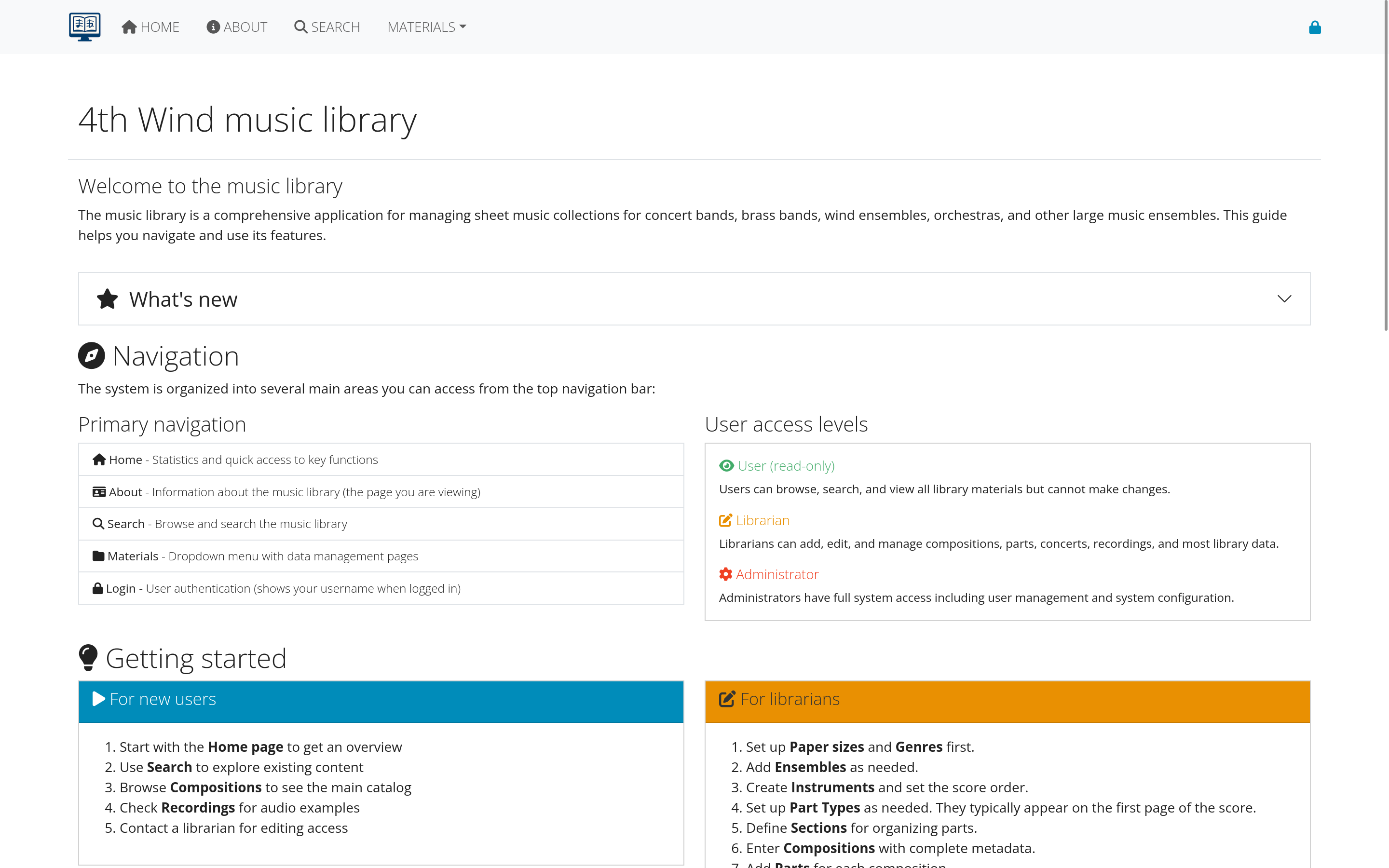 Figure 1: Available support resources and how to access them
Login and access issues
cannot Log In
Symptoms: Login form doesn’t work, error messages, or redirected to login page repeatedly.
Check Your Credentials
- Verify username: Check spelling and capitalization
- Verify password: Ensure Caps Lock is off, check for special characters
- Try “forgot password”: Reset your password if unsure
- Check email verification: Account may need email confirmation
Browser Issues
- Clear browser cache: Old data may be interfering
- Delete cookies: Remove stored login information
- Try incognito/private mode: Bypass browser extensions and stored data
- Try different browser: Chrome, Firefox, Safari, or Edge
Account Status Issues
- Contact administrator: Account may be disabled or suspended
- Check email: Look for account suspension or expiration notices
- Verify organization membership: Access may be restricted to current members
- Wait and retry: Temporary lockout may expire automatically
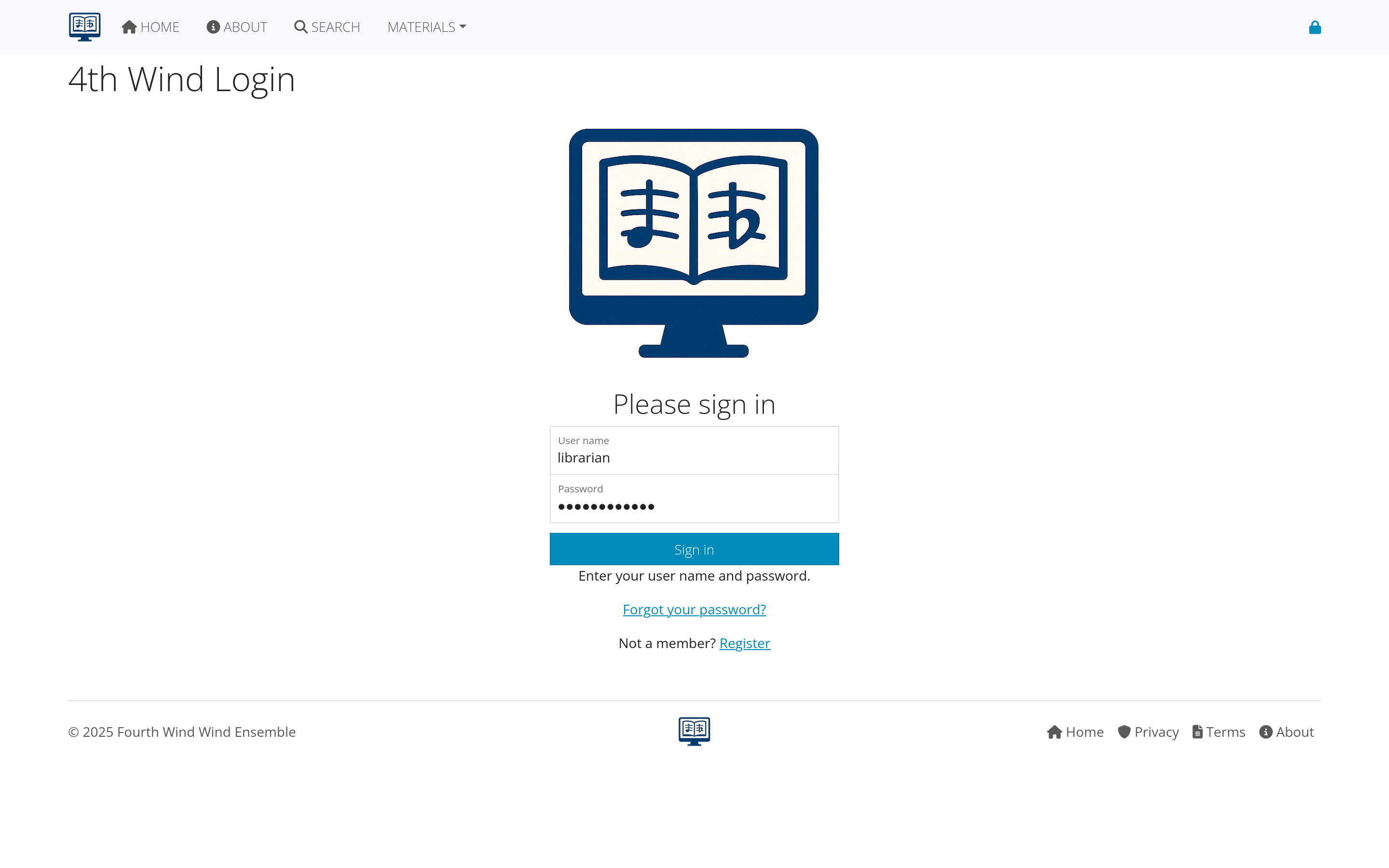 Figure 2: Step-by-step login troubleshooting process
email Verification Problems
Symptoms: Can’t find verification email, verification link doesn’t work.
Email Delivery Issues
- Check spam/junk folders: Verification emails often filtered
- Check all email accounts: Ensure using correct email address
- Wait a few minutes: Email delivery can be delayed
- Request new verification email: If original seems lost
Verification Link Problems
- Copy and paste full URL: Don’t just click the link
- Try different browser: Link may have browser-specific issues
- Check for line breaks: Email may have broken the URL
- Contact administrator: Link may have expired
permission Denied Errors
Symptoms: “Access denied,” “insufficient permissions,” or missing menu items.
Role and Permission Issues
- Check your user role: Confirm you have necessary permissions
- Contact administrator: Request role upgrade if needed
- Verify ensemble membership: Some content restricted by group
- Check account status: Inactive accounts have limited access
Session Problems
- Log out and log back in: Refresh your session
- Clear browser cookies: Remove old session data
- Check session timeout: Long idle periods may require re-login
- Try different browser: Session conflicts may occur
Search and navigation problems
search Not Working
Symptoms: No results when you expect them, search seems slow, or error messages.
Search Technique Issues
- Try broader terms: Use fewer, more general search words
- Check spelling: Typos prevent finding correct results
- Use partial terms: “Beeth” instead of “Beethoven”
- Try different fields: Search composer, title, or catalog number separately
Filter Problems
- Clear all filters: Remove genre, ensemble, or other restrictions
- Check date ranges: Ensure not limiting to impossible dates
- Reset search form: Start over with blank search
- Try advanced search: More specific options may help
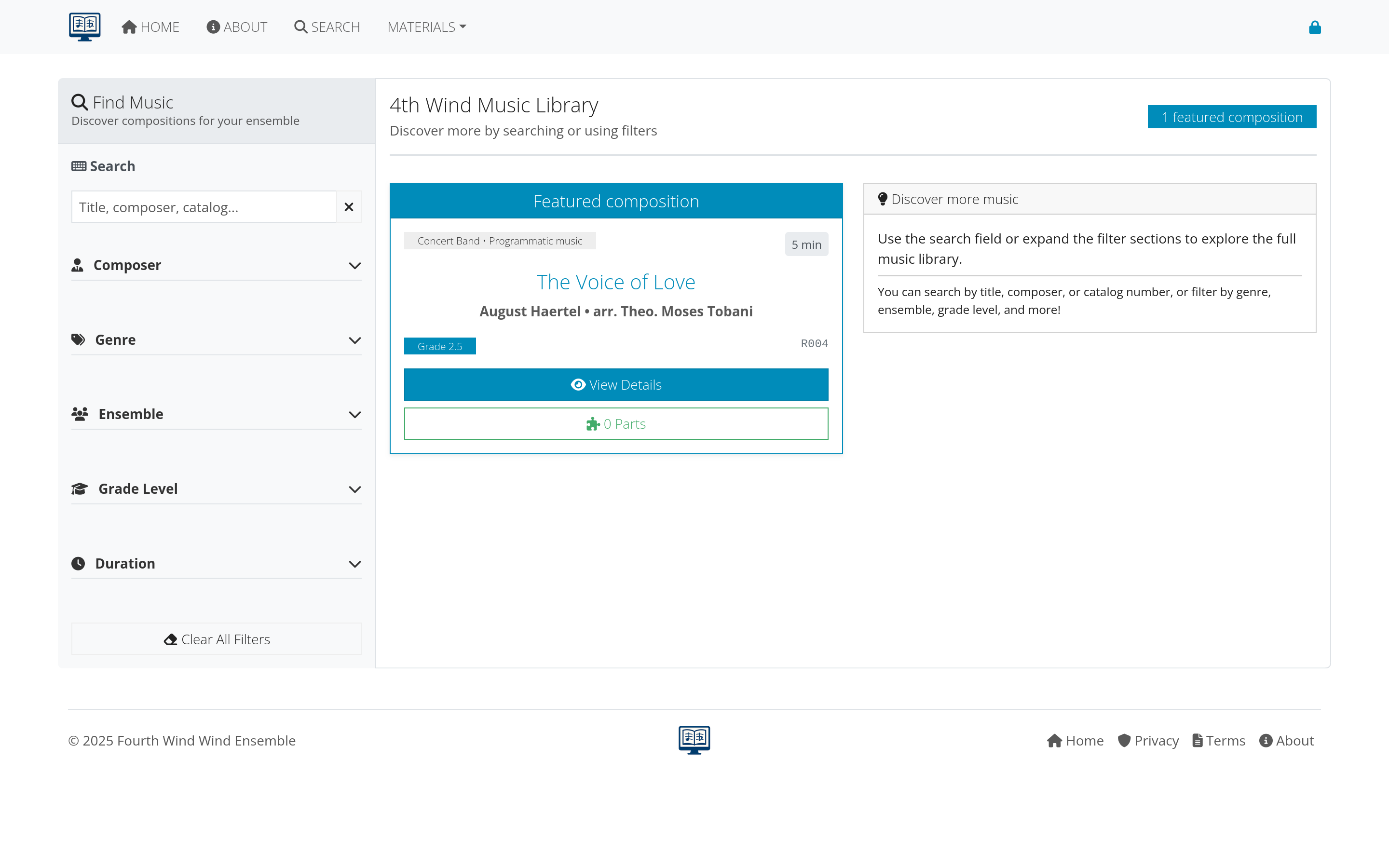 Figure 3: Common search problems and solutions
page Loading Issues
Symptoms: Pages load slowly, don’t load completely, or show error messages.
Browser Performance
- Close other browser tabs: Free up memory and processing power
- Restart browser: Clear temporary files and reset performance
- Check internet connection: Slow connections affect page loading
- Disable browser extensions: Some extensions interfere with websites
Cache and Data Issues
- Clear browser cache: Remove old page data
- Clear browser cookies: Reset stored login and preference data
- Try incognito/private mode: Bypass stored data and extensions
- Update browser: Ensure using current version
navigation Menu Problems
Symptoms: Menu items missing, menus don’t work, or wrong options showing.
Permission-Based Menu Issues
- Check user role: Higher roles see more menu options
- Log out and back in: Refresh menu permissions
- Contact administrator: Role may need updating
- Verify account status: Inactive accounts have limited menus
Browser Display Issues
- Try different browser: Some browsers display menus differently
- Check screen resolution: Very small screens may hide menu items
- Disable ad blockers: May interfere with menu display
- Allow JavaScript: Menus require JavaScript to function
File and download issues
files Won’t Download
Symptoms: Download doesn’t start, files are corrupted, or permission errors.
Permission Issues
- Check file permissions: You may not have download rights
- Verify account status: Active membership may be required
- Contact administrator: Request access to specific files
- Try different file: Test if problem is file-specific or system-wide
Browser Download Issues
- Check download folder: File may have downloaded to unexpected location
- Allow pop-ups: Download may be blocked by pop-up blocker
- Try right-click save: Alternative download method
- Clear download history: Reset browser download settings
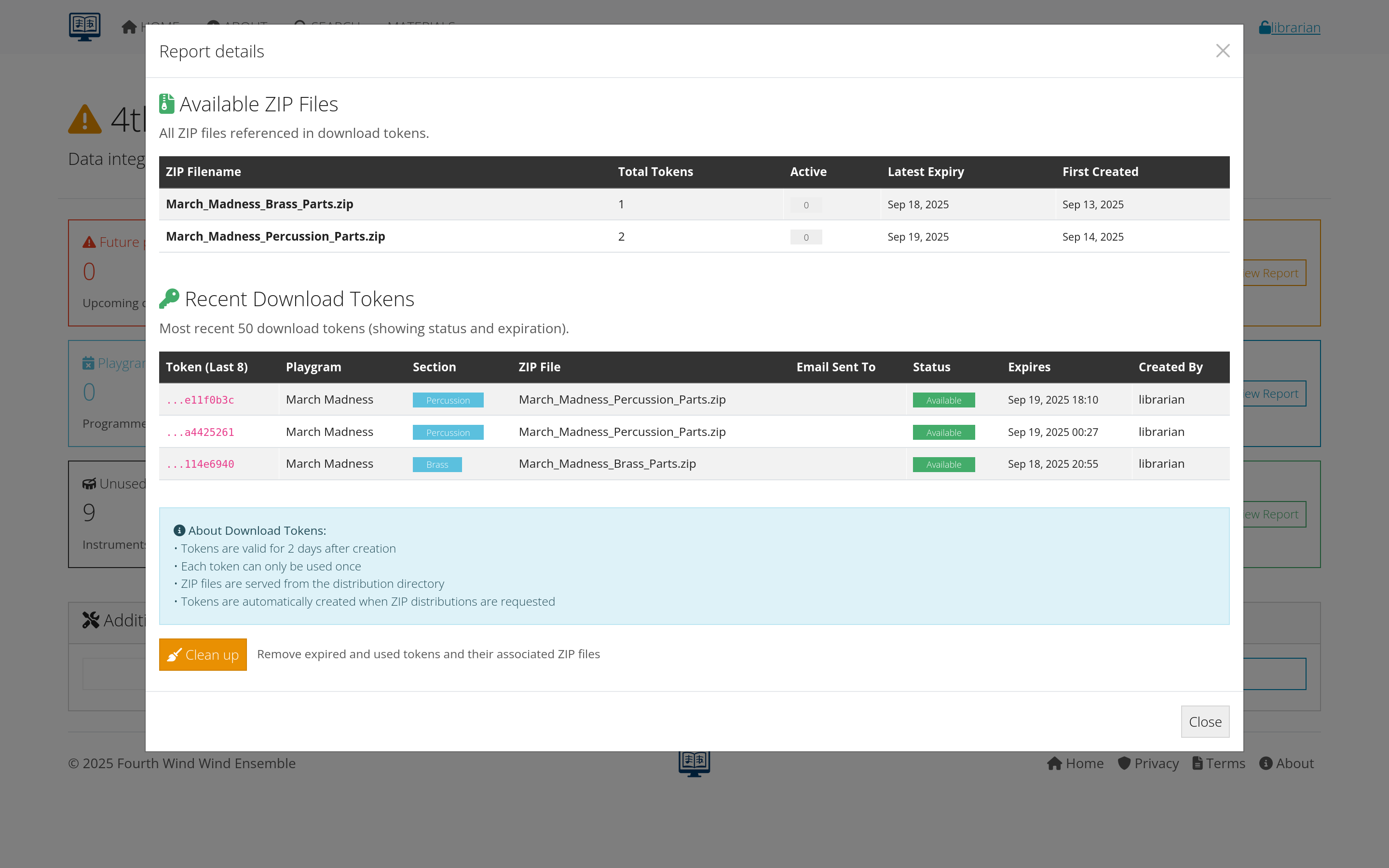 Figure 4: Diagnosing and fixing download problems
file Quality Problems
Symptoms: Files are blurry, pages missing, or text unreadable.
File-Specific Issues
- Try different file: Check if problem affects all files or just one
- Report file quality: Contact librarian about specific files
- Request better version: Higher quality scan may be available
- Check original source: Problem may be with original document
Display and Software Issues
- Update PDF reader: Ensure using current version of Adobe Reader or similar
- Try different PDF viewer: Some viewers display files differently
- Check zoom level: Zoom in for better text clarity
- Adjust display settings: Screen resolution and color settings affect readability
upload Problems
Symptoms: Can’t upload files, upload fails partway through, or files rejected.
File Format and Size Issues
- Check file format: Ensure using supported file types (PDF, JPG, etc.)
- Check file size: Large files may exceed system limits
- Compress files: Reduce file size if too large
- Split large files: Break into smaller parts if necessary
Permission and Access Issues
- Verify upload permissions: May need librarian or manager role
- Check specific item permissions: Some compositions may be locked
- Try different browser: Upload compatibility varies
- Contact administrator: May need special permissions for uploads
Data entry and editing problems
forms Not Saving
Symptoms: Changes don’t save, form resets, or error messages when saving.
Form Validation Issues
- Check required fields: Ensure all mandatory fields completed
- Verify data format: Check date formats, numbers, etc.
- Review field length: Some fields have character limits
- Check for special characters: Some symbols may not be allowed
Session and Permission Issues
- Check session timeout: Long editing sessions may expire
- Verify edit permissions: Account may not allow editing this item
- Log out and back in: Refresh session and permissions
- Try immediately after login: Avoid session expiration issues
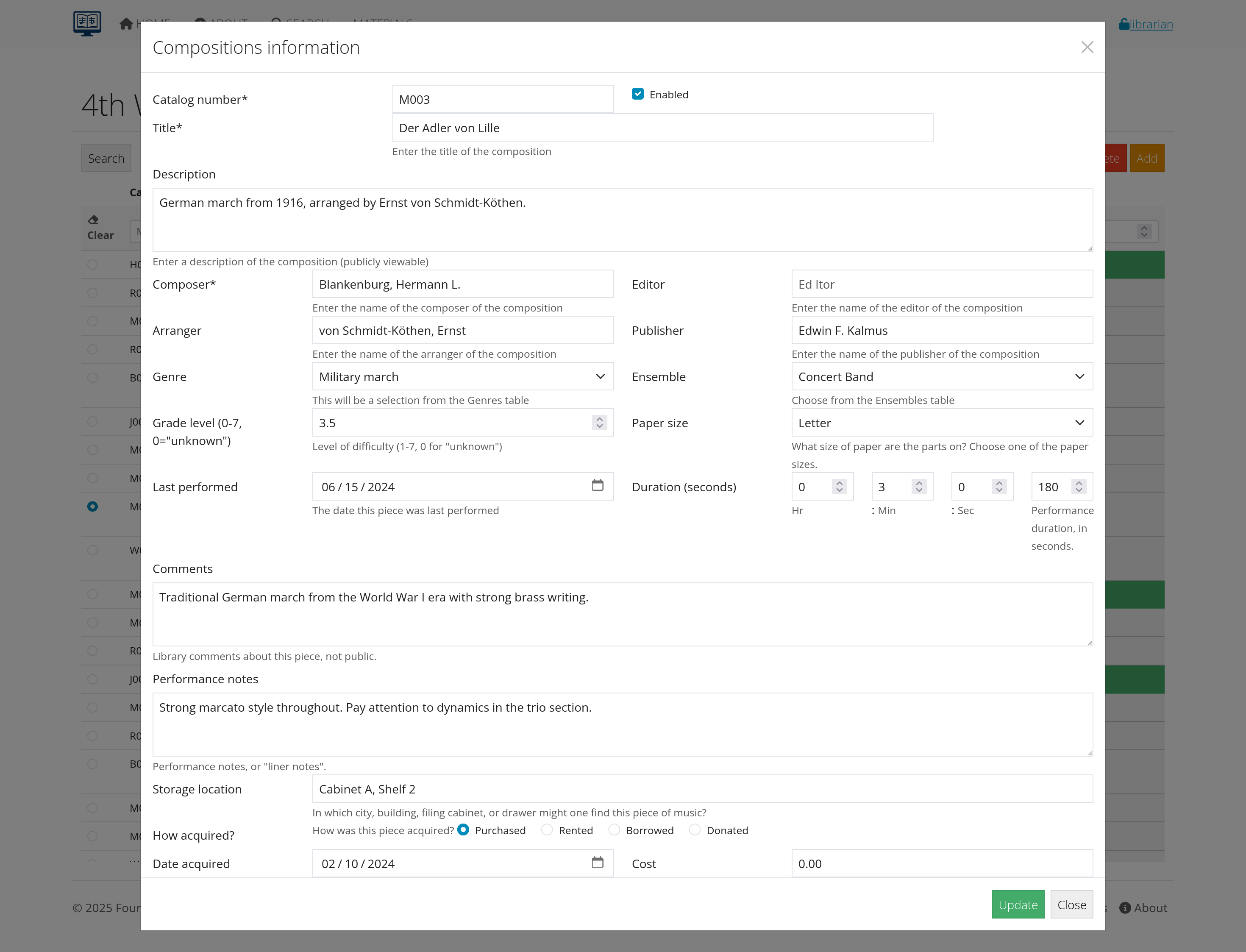 Figure 5: Common form and data entry problems
autocomplete Not Working
Symptoms: Composer names or other autocomplete fields don’t suggest options.
Browser and JavaScript Issues
- Enable JavaScript: Autocomplete requires JavaScript
- Clear browser cache: Old data may interfere
- Try different browser: Compatibility issues with some browsers
- Disable browser extensions: Some extensions block autocomplete
Data and Configuration Issues
- Type more characters: Some autocomplete requires 3+ characters
- Check spelling: Typos prevent finding matches
- Try alternate spellings: Different name formats may work
- Contact administrator: Autocomplete data may need updating
duplicate Detection Issues
Symptoms: System allows duplicate entries or flags valid entries as duplicates.
Data Entry Technique
- Search before adding: Check if item already exists
- Use consistent naming: Follow established format conventions
- Check alternate spellings: Item may exist with different spelling
- Verify catalog numbers: Ensure using unique identifiers
System Configuration
- Report false positives: Contact administrator about incorrect duplicate warnings
- Suggest improvements: Recommend better duplicate detection rules
- Manual verification: Double-check before overriding duplicate warnings
- Document exceptions: Note why duplicates are legitimate if they are
Performance and display issues
slow System Performance
Symptoms: Pages load slowly, searches take long time, or system feels sluggish.
User-Side Optimization
- Close other applications: Free up computer memory and processing
- Check internet connection: Slow connections affect performance
- Clear browser cache: Remove accumulated temporary files
- Restart browser: Reset browser performance
System Load Issues
- Try different times: System may be busier during peak hours
- Contact administrator: Report persistent performance problems
- Check system status: Look for maintenance or known issues
- Use alternative access: Try mobile app or different interface if available
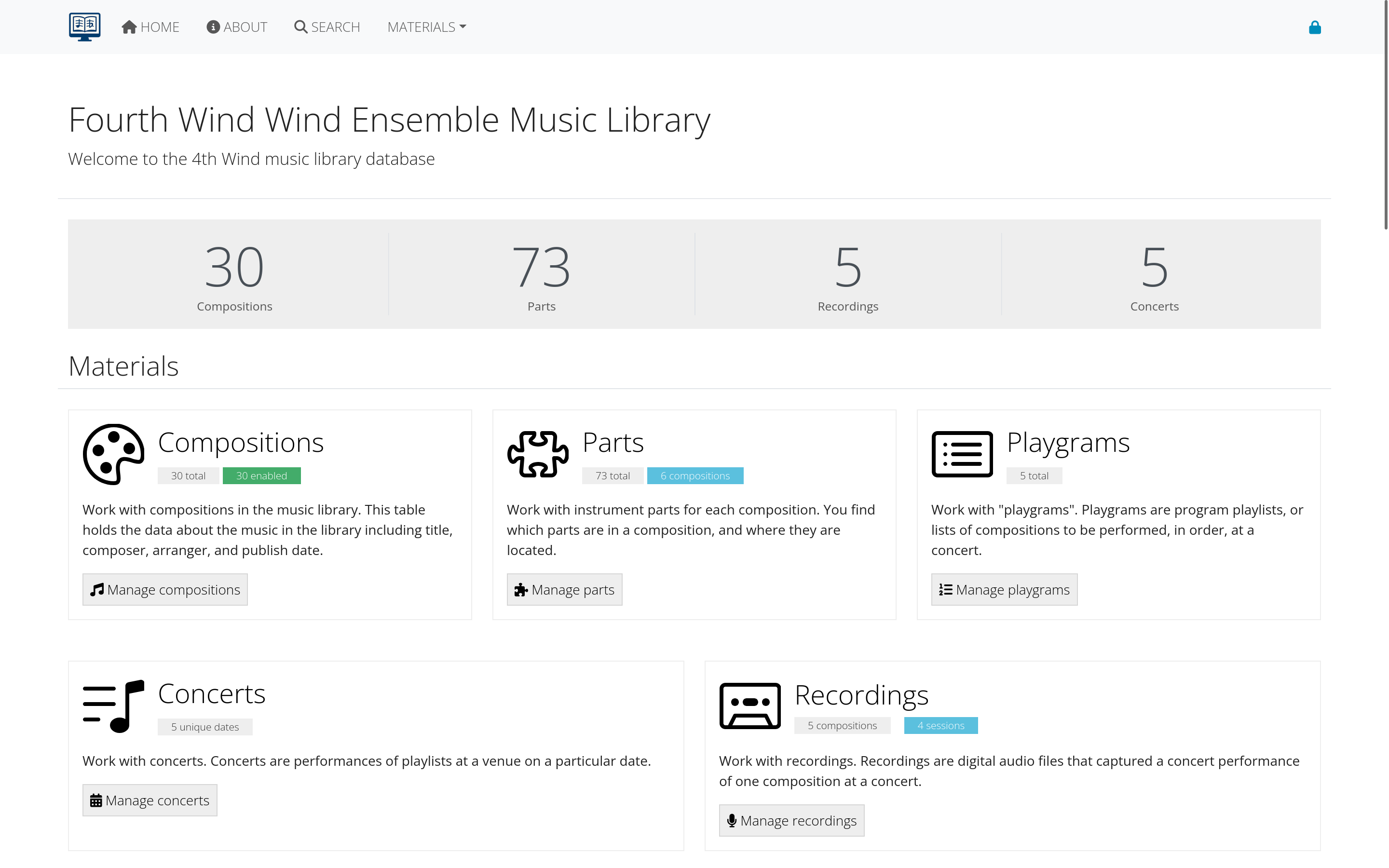 Figure 6: Tips for optimizing system performance
mobile Device Issues
Symptoms: Site doesn’t work well on phone or tablet, display problems.
Mobile Browser Issues
- Use supported browser: Chrome, Safari, Firefox mobile
- Update browser: Ensure using current mobile browser version
- Clear mobile browser cache: Remove old data
- Try landscape orientation: Some features work better in landscape
Mobile-Specific Features
- Use mobile-optimized pages: Look for mobile version if available
- Adjust zoom level: Find comfortable text size
- Use WiFi connection: Mobile data may be slower
- Close other mobile apps: Free up device memory
display and Layout Problems
Symptoms: Text overlaps, buttons missing, or layout looks wrong.
Browser Compatibility
- Update browser: Use current version for best compatibility
- Try different browser: Test with Chrome, Firefox, Safari, Edge
- Check browser settings: Ensure standard settings enabled
- Disable extensions: Some browser extensions interfere with layout
Screen and Display Settings
- Check zoom level: Browser zoom may distort layout
- Adjust screen resolution: Very high or low resolutions may cause issues
- Try full-screen mode: Maximize browser window
- Check text size settings: Operating system text size affects display
Administrator issues
user Management Problems
Symptoms: Can’t create users, email notifications not working, or permission issues.
Email Configuration Issues
- Test email settings: Send test emails to verify configuration
- Check SMTP settings: Server, port, authentication details
- Verify email templates: Ensure notification templates are correct
- Check spam filtering: Organization spam filter may block system emails
Permission and Role Issues
- Verify administrator permissions: Ensure you have manager role
- Check user role hierarchy: Understand permission levels
- Test with different users: Isolate whether problem is user-specific
- Review audit logs: Check what actions are being logged
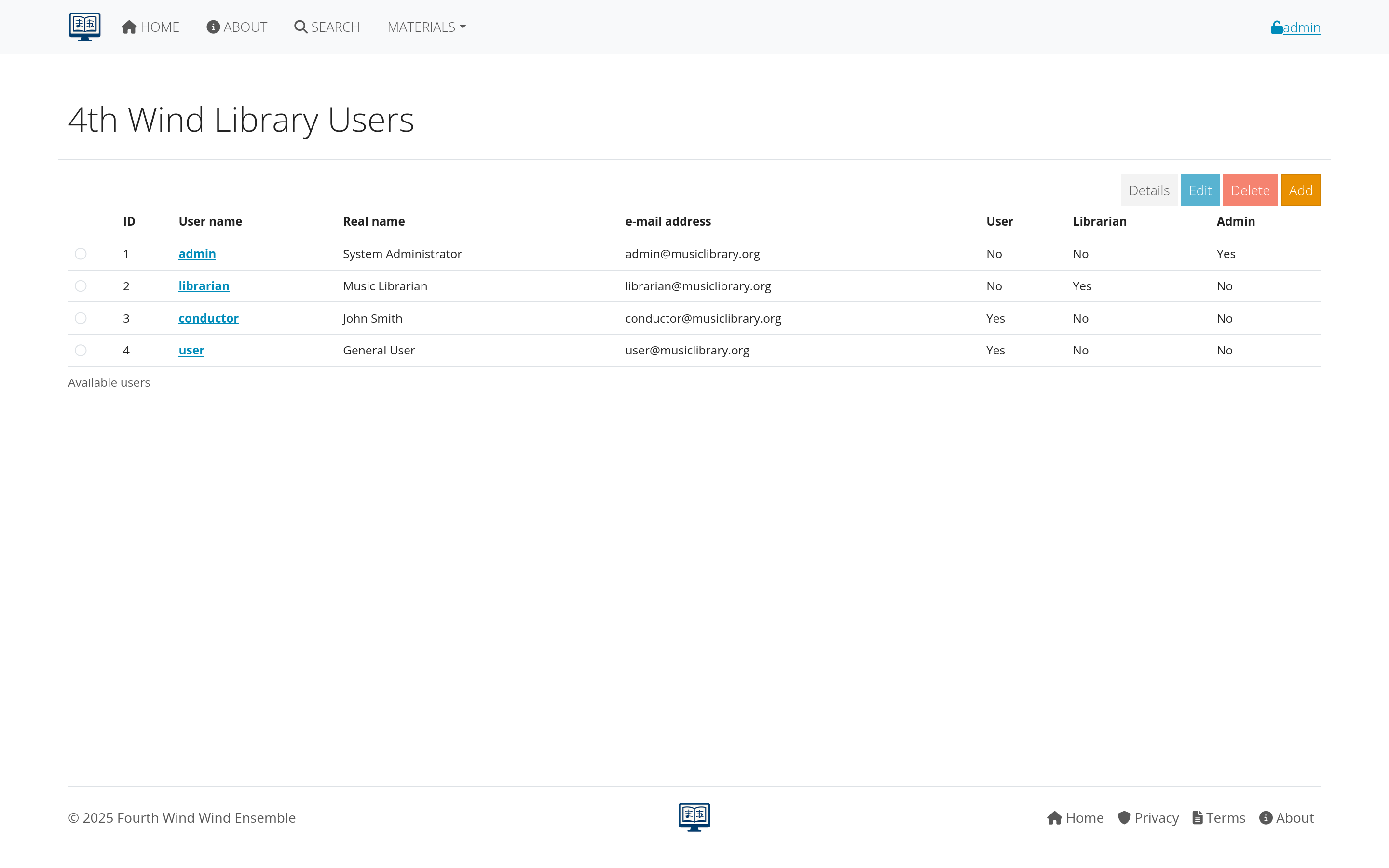 Figure 7: Troubleshooting workflow for administrator issues
data Import/Export Problems
Symptoms: Import fails, exported data incomplete, or format errors.
File Format Issues
- Check file format: Ensure using supported formats (CSV, Excel, etc.)
- Verify column headers: Match expected field names exactly
- Check data encoding: Ensure UTF-8 or compatible character encoding
- Validate data: Check for missing required fields or invalid values
System Resource Issues
- Check file size limits: Large files may exceed system capacity
- Break into smaller batches: Import data in smaller chunks
- Schedule during off-hours: Reduce system load during import
- Monitor system resources: Check memory and disk space
backup and Recovery Issues
Symptoms: Backups failing, restore procedures not working, or data inconsistencies.
Backup Configuration
- Verify backup schedule: Ensure automated backups are configured correctly
- Check storage space: Backup destination may be full
- Test backup integrity: Regularly verify backups are complete and usable
- Document procedures: Maintain current backup and restore instructions
Recovery Procedures
- Practice recovery: Regularly test restore procedures
- Verify data integrity: Check restored data for completeness and accuracy
- Update procedures: Keep recovery instructions current
- Train staff: Ensure multiple people can perform recovery if needed
Browser and compatibility problems
browser-Specific Issues
Different browsers may have different compatibility levels with AllanaCrusis.
Recommended Browsers
- Chrome: Generally best compatibility and performance
- Firefox: Good alternative with strong security features
- Safari: Works well on Mac and iOS devices
- Edge: Microsoft’s modern browser with good compatibility
Browser Settings
- Enable JavaScript: Required for most AllanaCrusis features
- Allow cookies: Necessary for login and preferences
- Enable pop-ups: May be needed for downloads and new windows
- Update regularly: Keep browser current for security and compatibility
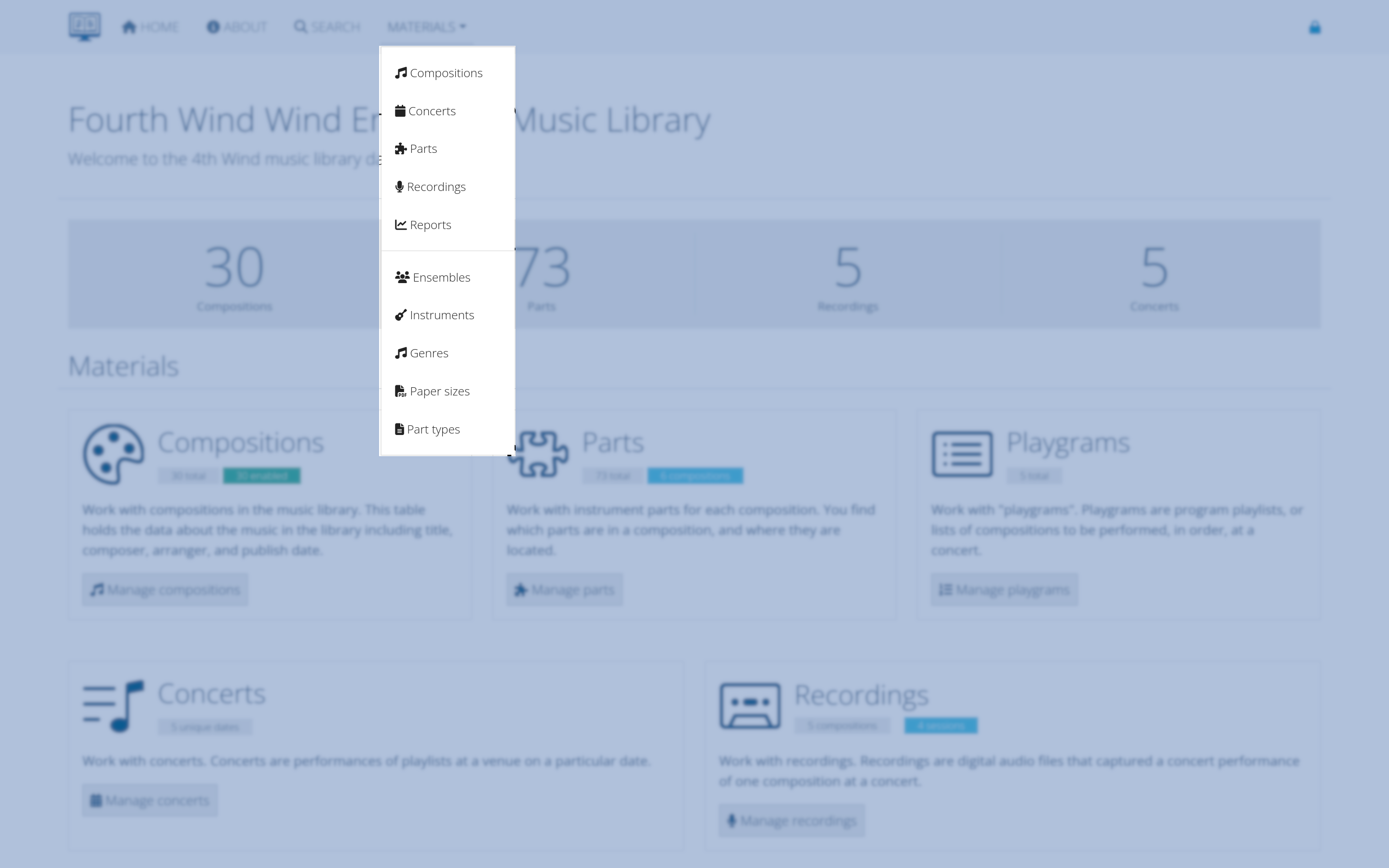 Figure 8: Browser compatibility and recommended settings
operating System Issues
Symptoms: Features don’t work on specific operating systems.
Windows Issues
- Update Windows: Ensure using supported Windows version
- Check Internet Explorer: Avoid using Internet Explorer
- Use Edge or Chrome: Better compatibility with modern web standards
- Check security settings: Windows security may block some features
Mac Issues
- Use Safari or Chrome: Best compatibility on Mac systems
- Update macOS: Ensure using supported operating system version
- Check Safari settings: Ensure standard web features enabled
- Try Chrome: Alternative if Safari has issues
Mobile Operating Systems
- iOS: Use Safari or Chrome mobile browser
- Android: Use Chrome or Firefox mobile browser
- Update mobile OS: Ensure using supported version
- Clear mobile browser data: Remove cache and cookies regularly
accessibility Issues
Symptoms: System doesn’t work with screen readers or other assistive technology.
Screen Reader Compatibility
- Use supported screen readers: JAWS, NVDA, VoiceOver
- Enable browser accessibility: Turn on accessibility features
- Navigate with keyboard: Ensure all features accessible without mouse
- Report accessibility problems: Contact administrator about barriers
Visual Accessibility
- Adjust browser zoom: Increase text size as needed
- Use high contrast: Browser or operating system high contrast modes
- Check color settings: Ensure sufficient contrast for readability
- Use browser accessibility tools: Built-in tools for visual impairments
Preventive measures
regular Maintenance
For Users:
- Clear browser cache monthly: Prevent accumulation of old data
- Keep browsers updated: Ensure security and compatibility
- Use bookmarks: Save frequently used pages for quick access
- Learn keyboard shortcuts: Improve efficiency and reduce errors
For Administrators:
- Monitor system performance: Watch for slowdowns or errors
- Review user feedback: Address common problems proactively
- Update documentation: Keep troubleshooting guides current
- Train users: Prevent problems through education
best Practices
Data Entry:
- Follow naming conventions: Consistent formats prevent errors
- Double-check before saving: Verify information accuracy
- Use copy and paste carefully: Avoid formatting issues
- Save work frequently: Prevent loss due to session timeouts
System Usage:
- Log out when finished: Protect account security
- Report problems promptly: Help improve system for everyone
- Keep contact information current: Ensure you receive important notifications
- Participate in training: Stay current with new features and best practices
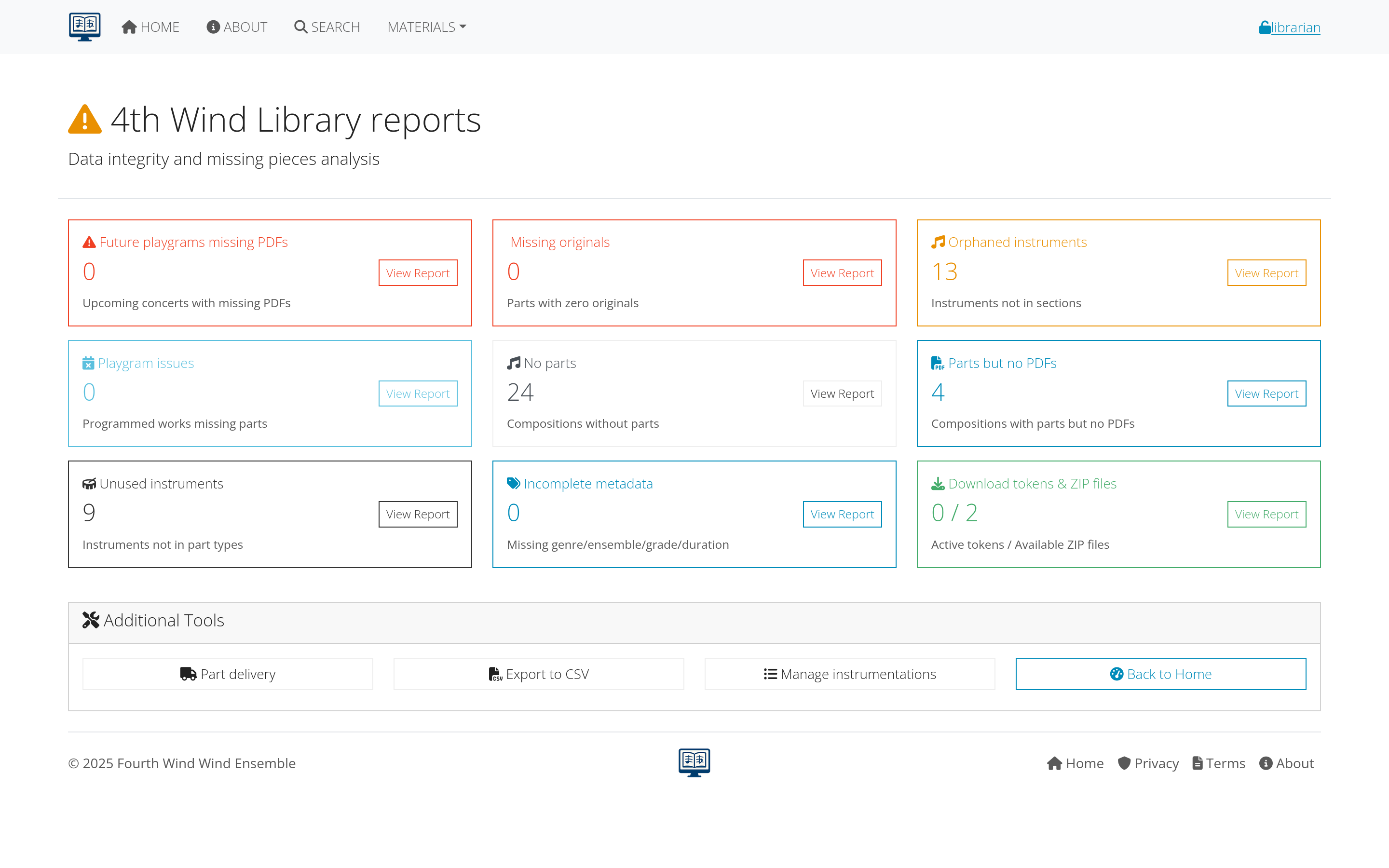 Figure 9: Checklist for preventing common problems
Emergency procedures
system Outages
If AllanaCrusis is completely unavailable:
- Check system status page: Look for known outage information
- Try different devices: Verify problem isn’t device-specific
- Contact administrator: Report outage if not already known
- Use alternative access: Mobile app or backup systems if available
data Loss or Corruption
If data appears to be lost or corrupted:
- Don’t panic: Most data loss can be recovered
- Document the problem: Note what data is missing or incorrect
- Contact administrator immediately: Quick action improves recovery chances
- Avoid making changes: Don’t try to fix problems yourself
security Incidents
If you suspect unauthorized access:
- Change password immediately: Secure your account
- Log out from all devices: End all active sessions
- Contact administrator: Report security concerns immediately
- Monitor account activity: Watch for unusual activity
Getting additional help
escalation Procedures
When basic troubleshooting doesn’t work:
- Document the problem: Include error messages, steps taken, and results
- Contact your local administrator: First line of support
- Provide detailed information: Help support staff understand the issue
- Be patient: Complex problems may take time to resolve
support Resources
Internal Support:
- System administrator: First contact for most issues
- Librarian: Content and process questions
- IT department: Network and infrastructure issues
- Training coordinator: Help with learning new features
External Support:
- AllanaCrusis documentation: Official user guides and resources
- Technical support: Vendor or developer assistance
- User community: Forums and discussion groups
- Professional services: Consulting and implementation help
This completes the comprehensive AllanaCrusis documentation. Each section builds upon the previous ones to provide complete guidance for users at all levels.