Getting started with AllanaCrusis
This guide will help you understand the AllanaCrusis interface and basic functionality. Whether you’re new to the system or need a refresher, start here to get oriented.
Table of contents
System requirements
Web browser
AllanaCrusis works best with modern web browsers, and uses your stable internet connection.
First visit
Accessing the system
- Open your web browser.
- Navigate to your organization’s AllanaCrusis URL.
- You’ll see the public welcome page with basic information and a randomly selected composition and recording.
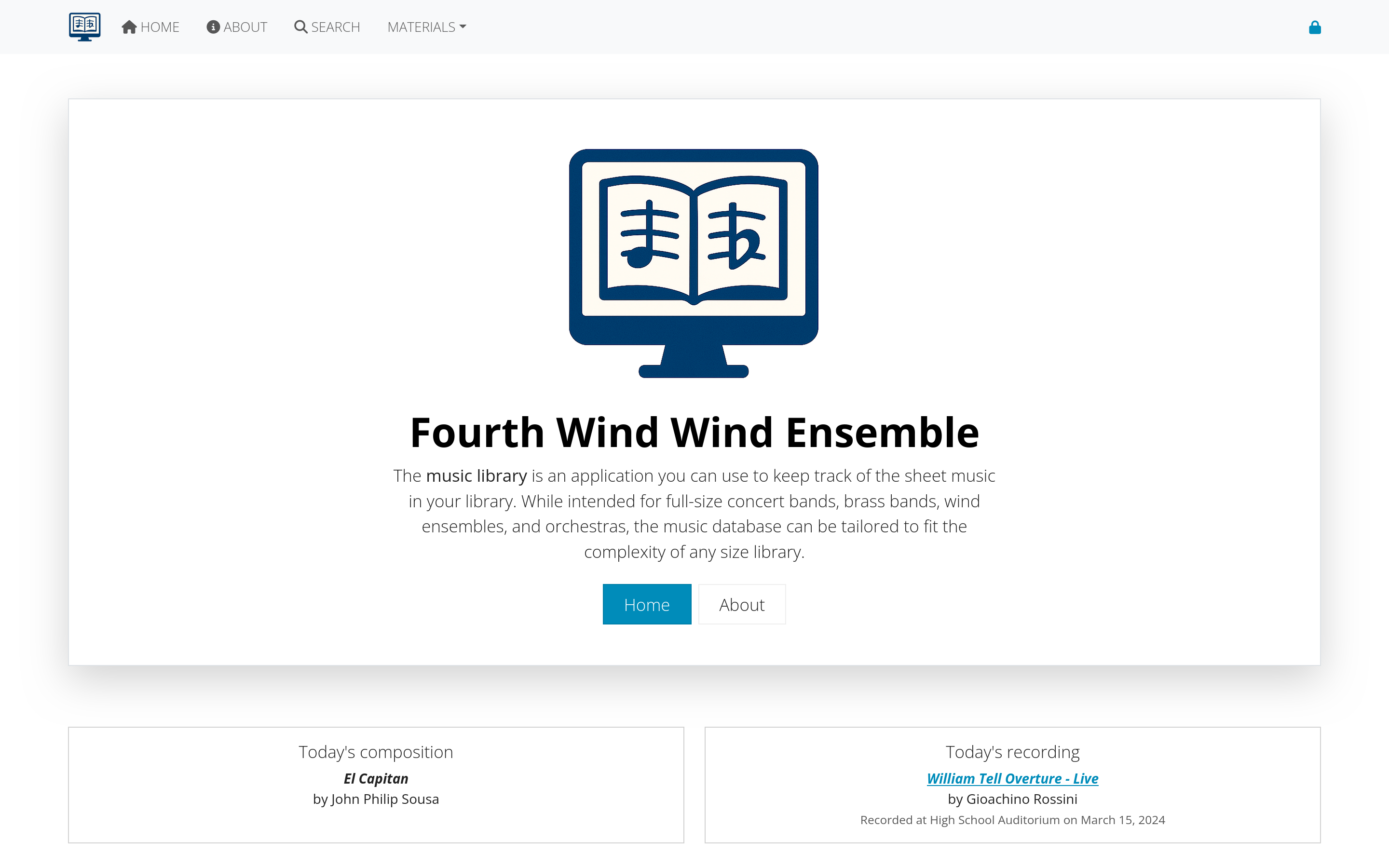 Figure 1: Welcome page
What you can do without logging in
- Browse public compositions, concerts, recordings, and some supporting data
- Use basic search functionality
- View general information about the library
- Read about the system and organization
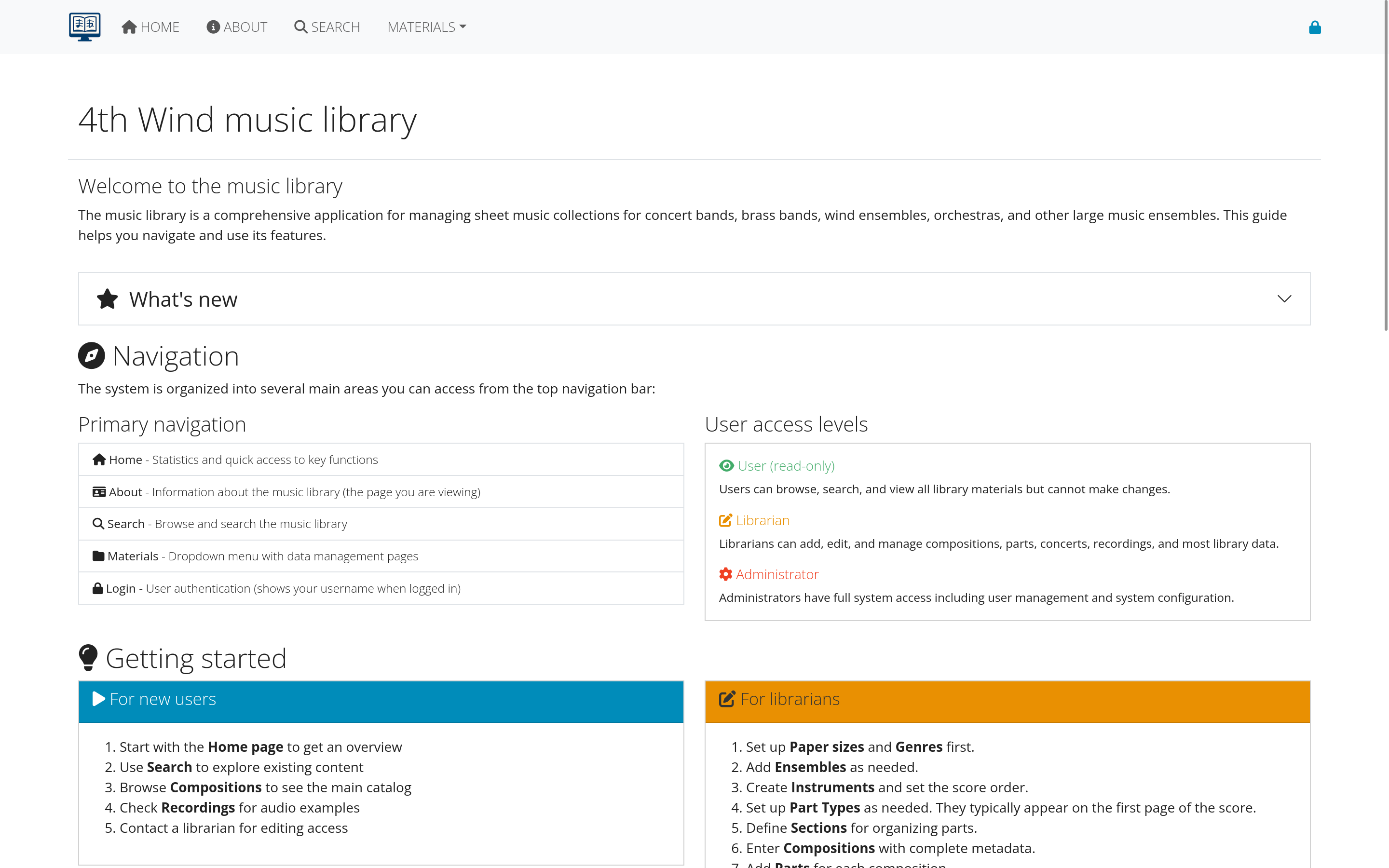 Figure 2: Public homepage view
Home page overview
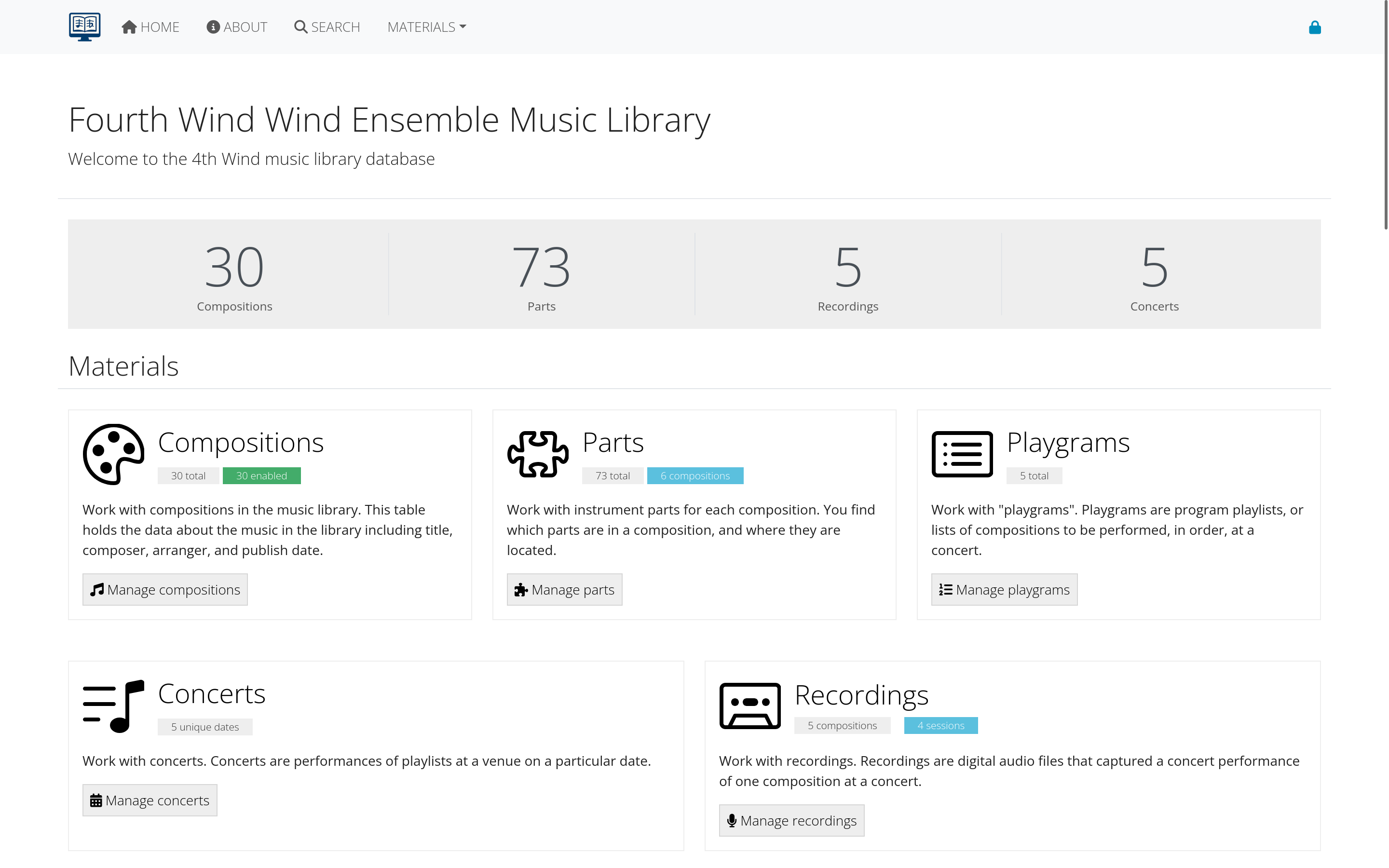 Figure 4: Home page with feature information and updates
Welcome section
The homepage provides:
- Quick overview of the music library
- Recent additions or featured compositions
- Links to commonly used sections
- Contact information
Navigation bar
The top navigation includes:
- Home: Return to main page
- Search: Global search functionality
- About: Information about the system and organization
- Login/Register: Access control
Quick stats
- Total compositions in the library
- Number of different ensembles
- Recent activity summary
Navigation
Main menu structure
The navigation is organized into logical sections:
Public areas (available to everyone)
- Home: Main dashboard
- Search: Composition lookup
- About: System and organization information
Member areas (login required)
- Materials: Compositions, parts, instruments
- Reports: Advanced search and analytics
- Admin: User management (managers only)
Breadcrumb navigation
- Shows your current location in the system
- Click any level to navigate back
- Helps you understand the page hierarchy
User status indicator
The top right shows:
- Your login status
- Current user role
- Quick access to logout
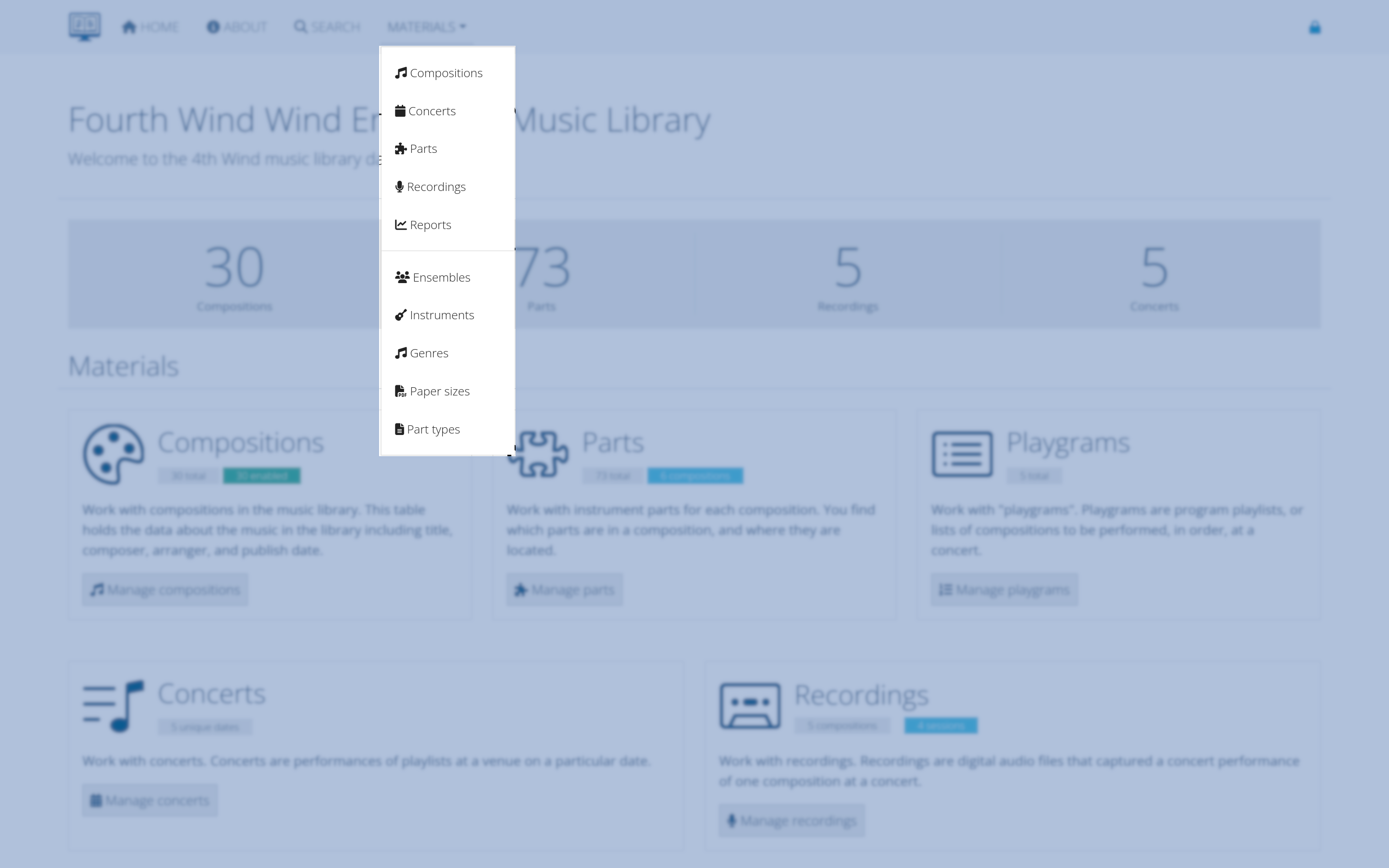 Figure 7: Main navigation menu with user status
Interface elements
Color coding
AllanaCrusis uses consistent color coding:
- Blue buttons: Edit or view actions
- Green buttons: Add or create actions
- Red buttons: Delete or remove actions
- Gray buttons: Cancel or neutral actions
Tables and lists
- Sortable columns: Click headers to sort
- Filter boxes: Type to filter results in real-time
- Sticky headers: Headers stay visible while scrolling
- Pagination: Navigate through large datasets
Forms
- Required fields: Marked with asterisks (*)
- Validation: Real-time feedback on form entries
- Autocomplete: Helpful suggestions for common fields
- Save indicators: Clear feedback when data is saved
Getting help
Built-in help
- Tooltips: Hover over elements for quick help
- Field descriptions: Explanatory text for complex fields
- Error messages: Clear guidance when something goes wrong
Documentation
- User Guide sections: Detailed instructions for each area
- Video tutorials: Step-by-step visual guides (if available)
- FAQ: Common questions and answers
support resources
- System Administrator: For technical issues
- Librarian: For content and process questions
- User Community: Other users in your organization
Next steps
Now that you understand the basics:
- Get access - Learn about user accounts and roles
- Explore search - Discover search capabilities and techniques
- View compositions - See how musical works are organized
Continue to the next section: Getting Access to learn about user accounts and permissions.